
Screen sharing is the practice most requested by teachers on interactive digital displays. And yet, whatever method is used, screen sharing, in addition to preventing you from exploiting the display’s full performance, comes with its share of drawbacks.
In this article, we discuss its disadvantages and negative impacts on lesson quality, and present a simple and practical alternative with Speechi Connect.
Screen sharing, what is it for? (↑)
Two main reasons push teachers to willingly resort to screen sharing:
- To share documents (PDF, Word, PowerPoint, images) hosted on their PC or in their Drive.
- To stay in a work environment they master and are familiar with.
The drawbacks of screen sharing (↑)
It is rare for a school to succeed in having stable, high-quality WiFi. This is notably due to building infrastructure, the large number of connected devices, and various interferences disrupting the network. Under such conditions, teachers’ systematic use of screen sharing is not a practice without consequences.
Via Miracast / Airplay (↑)
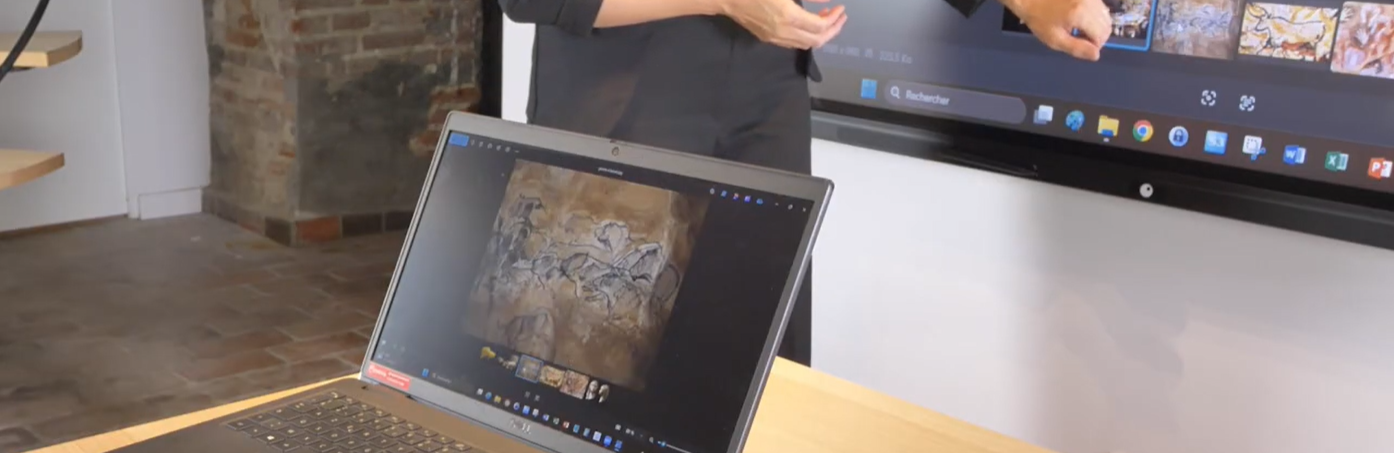
Let’s start with screen-sharing software, like Miracast or Airplay. Although appreciated because they require no cables, in the context of a school with unstable WiFi, using such software is not necessarily a good idea if you want to save yourself from digital fatigue for 3 main reasons:
1. An impact on fluidity
When using a screen-sharing application, there is a phenomenon of inherent latency*, meaning a display delay between what happens on your mobile device and what you will see on the interactive screen. This latency actually worsens depending on your network’s quality.
→ We therefore lose the immediacy of display, fluidity of use, and execution speed of the Speechi interactive display.
* This latency corresponds to the time required to send data from your device to the interactive display.
2. A risk of bandwidth congestion
The practice of screen sharing can consume a lot of bandwidth. If every class in a school is equipped with an interactive display and teachers predominantly use screen sharing, then the WiFi network’s bandwidth may struggle to handle this volume of data.
→ When this bandwidth congestion occurs, you will notice lags, pixelation of moving images, or even micro audio cuts when playing media.
** A WiFi network’s bandwidth refers to its capacity to transmit a certain volume of data.
3. Increased power consumption
While the impact of screen sharing is moderate on your interactive display’s power consumption, it is, however, very high on that of your PC! If you use screen sharing for extended periods, you will notice that your PC heats up and turns on its fans to cool its components because its processor and graphics chip are heavily strained, in addition to its network card.
→ Your PC’s components and battery wear out unnecessarily, when the interactive display could handle displaying documents on its own thanks to Speechi Connect for a much more reasonable final power consumption.
Comparison table of drawbacks (↑)
Screen sharing vs. Speechi Connect
Via an HDMI / USB-Touch cable (↑)
A loss of comfort and practicality
Connecting your PC to the interactive display has several advantages: no latency, no bandwidth consumption, and no extra power consumption. However, you lose out on comfort:
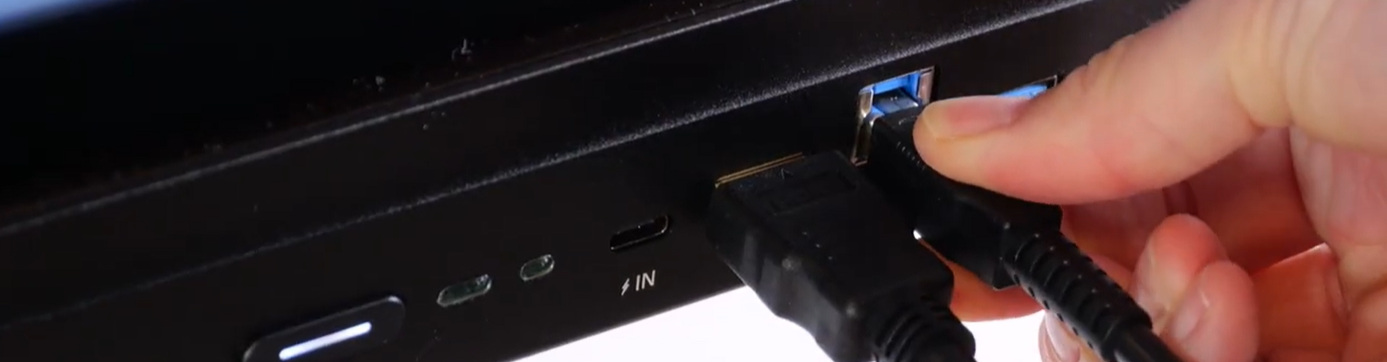
- Cables encroach on your workspace.
- You lose freedom of movement since the cables force you to stay close to the screen.
- Sometimes the classroom layout even makes the cabling solution obsolete (teacher’s desk too far from the interactive display).
- Finally, you are not immune to one of the cables malfunctioning one day.
A risk to your data privacy (↑)
By practicing screen sharing, teachers take the risk of exposing elements they do not wish to share to the class, especially if their PC, in addition to being a professional work tool, also happens to be a personal device.
→ With Speechi Connect, there is no risk of seeing private info leak! You have a workspace reserved for the classroom’s interactive display, which you will have previously customized according to your tastes and your daily lessons.
Risk comparison table (↑)
Screen sharing vs. Speechi Connect
Speechi Connect to work with the class (↑)
With complete peace of mind
So far, we have mostly focused on the drawbacks of screen sharing. What happens on the teacher’s side when they take hold of their Speechi Connect workspace? Let’s put ourselves in the teacher’s shoes to see what it changes for them.
1. I ensure my data privacy
with the Speechi Connect safe
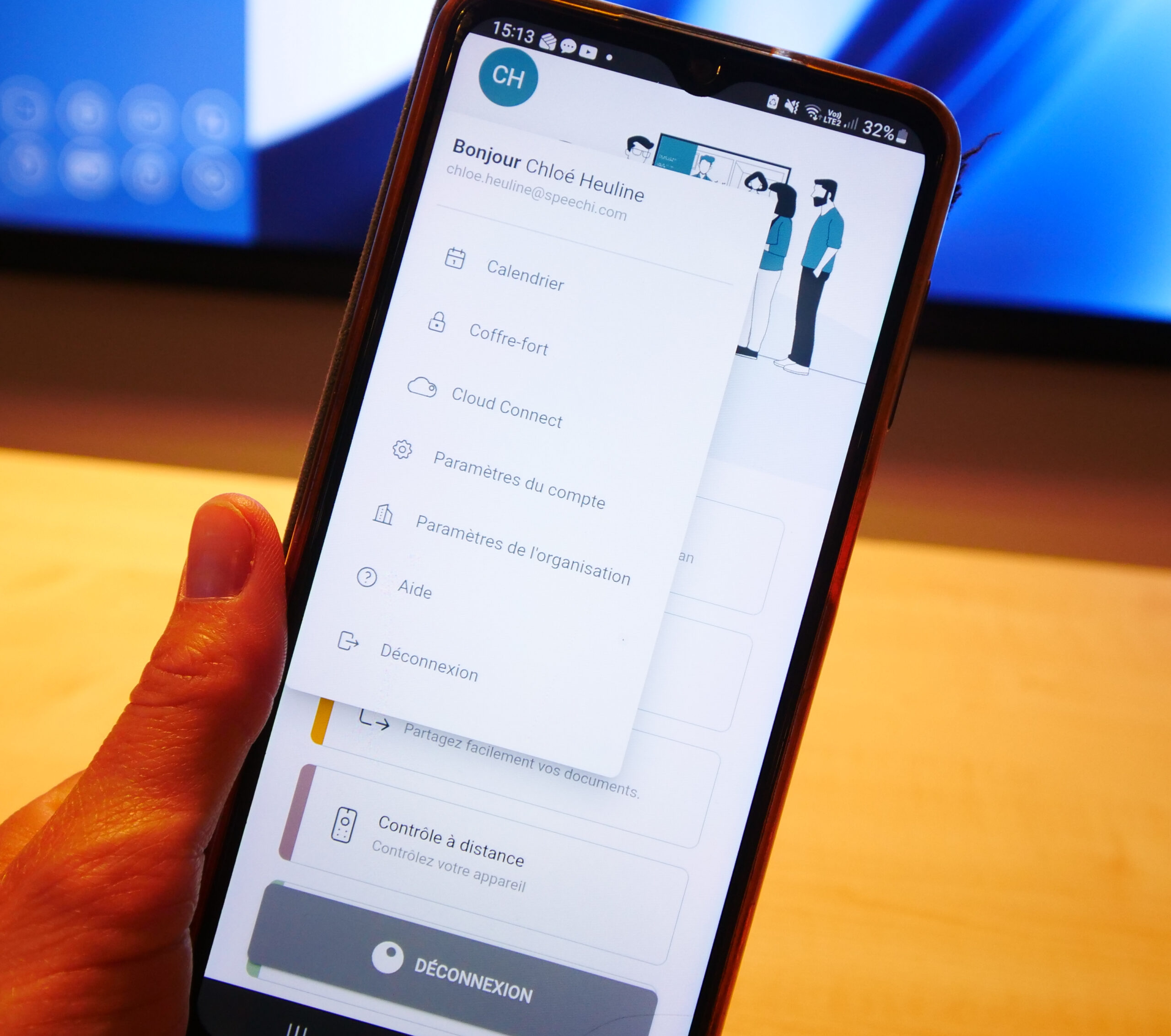
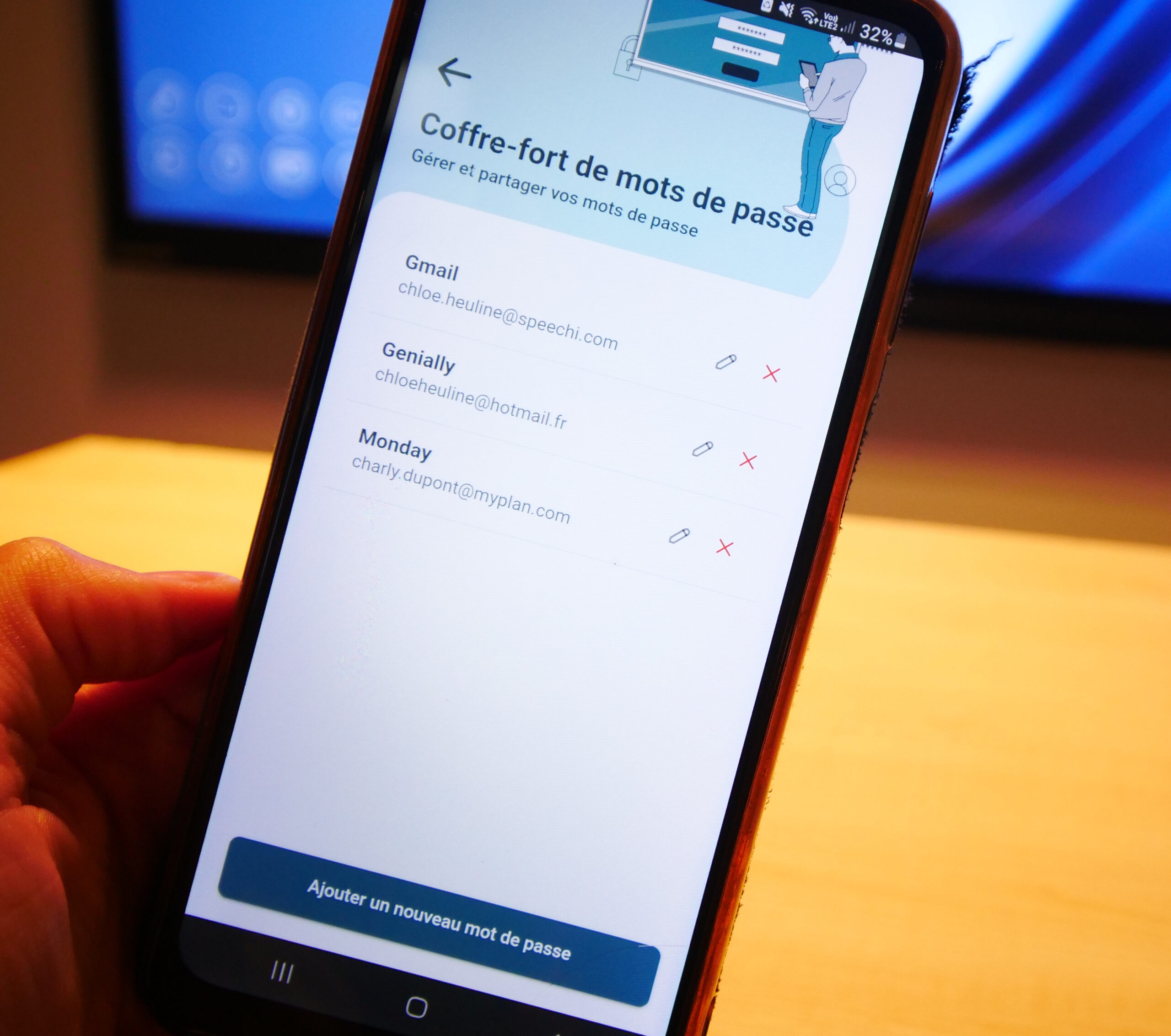
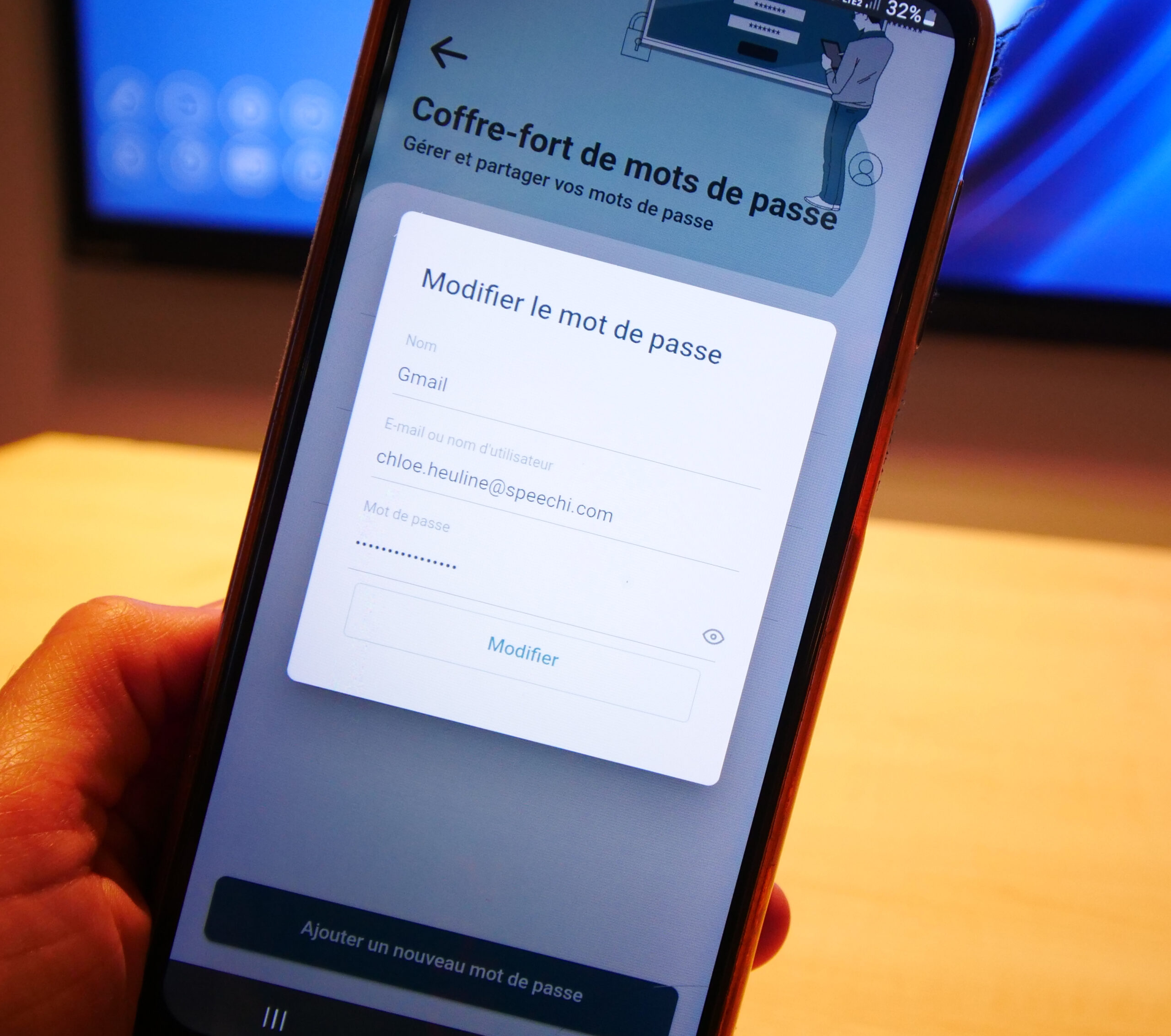
On the Speechi Connect application of my smartphone, I enter the login information for all the sites likely to be used in class.
On the classroom’s interactive digital display, once connected to my workspace, I open the Swift Bar and go to the Safe panel where a single click is enough to copy my encrypted password.
→ My passwords remain encrypted and my data security is ensured.
2. I customize my workspace on the interactive display
with the “Workspace” and “Toolbar” tabs
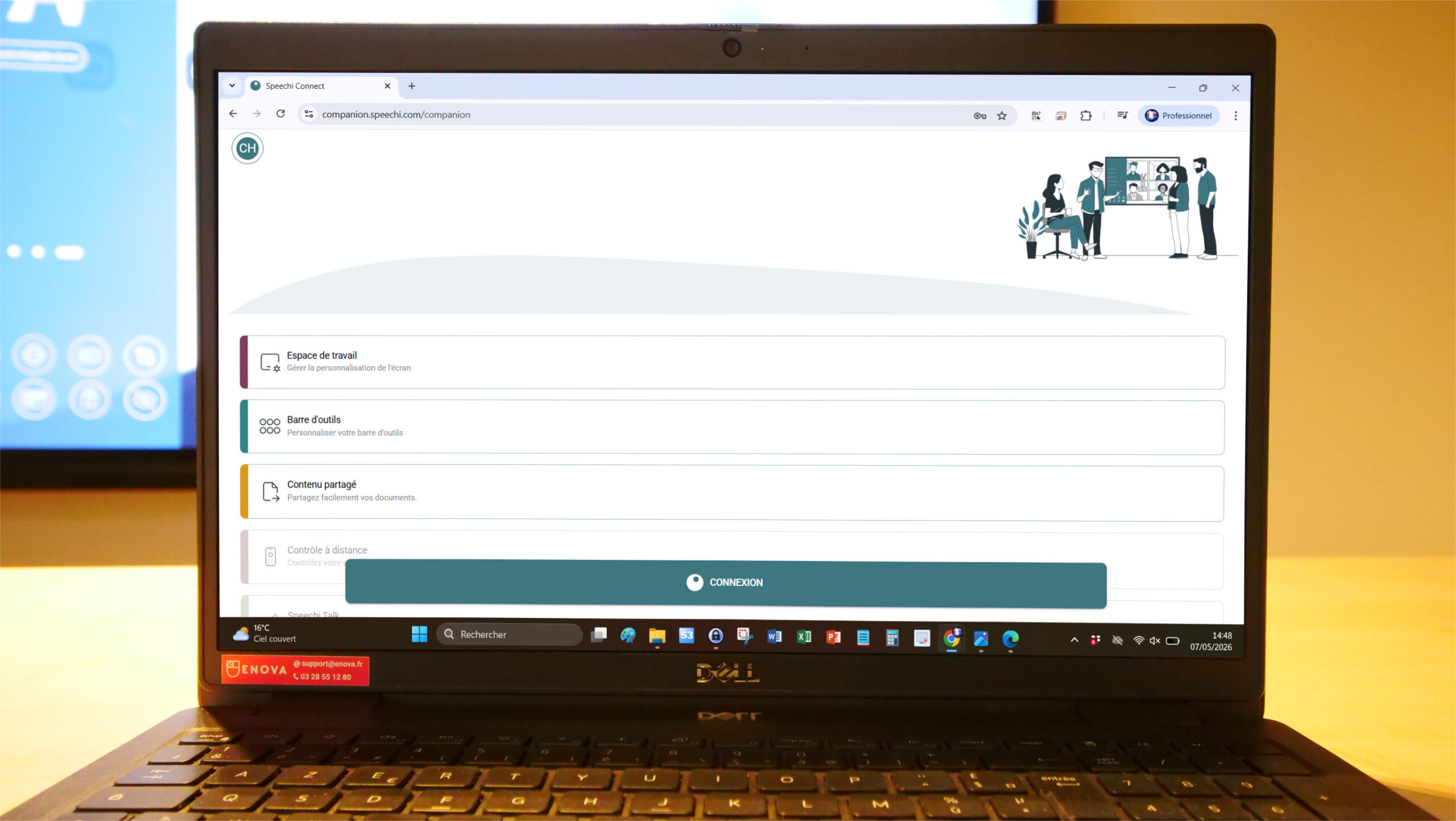
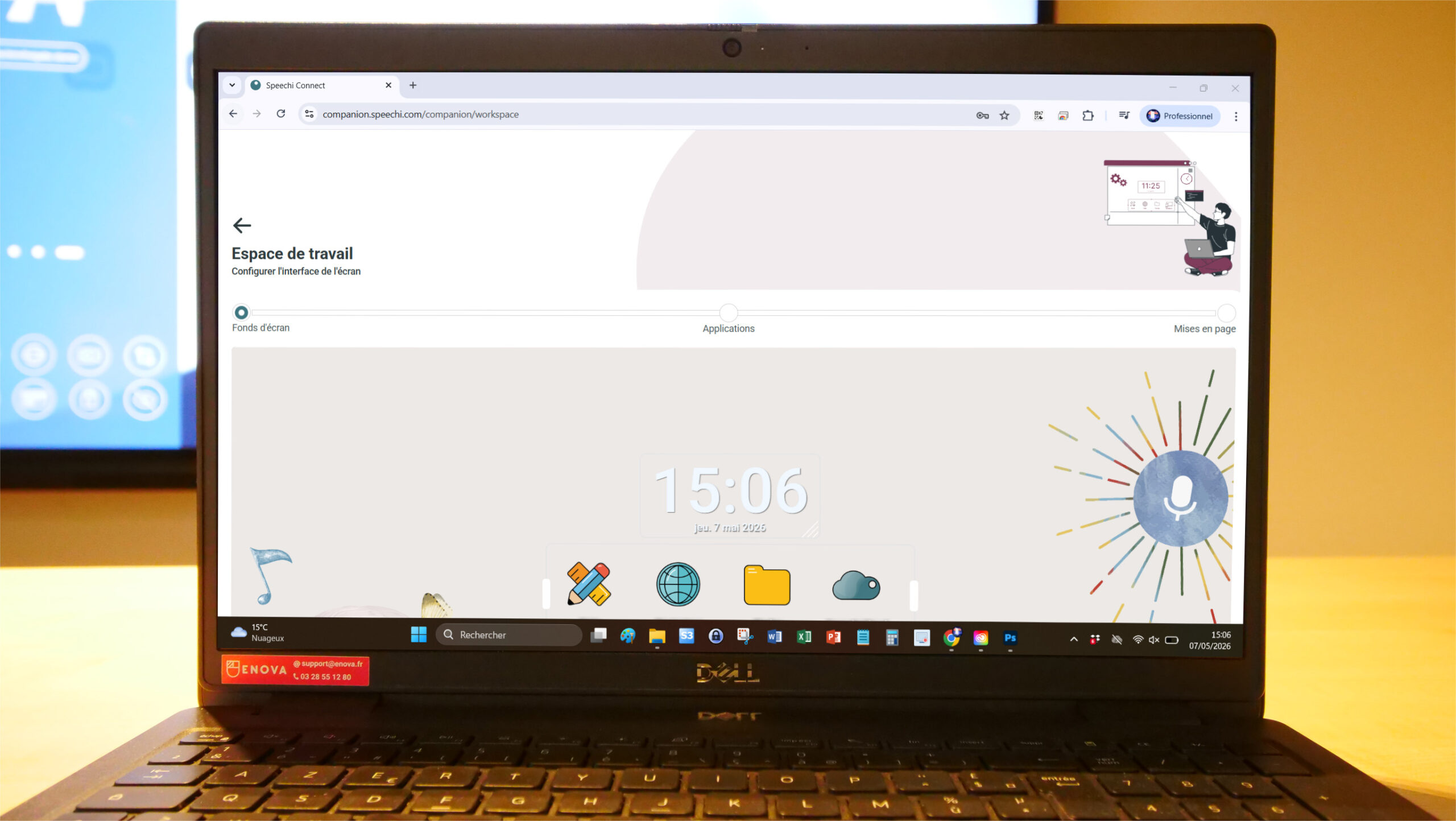
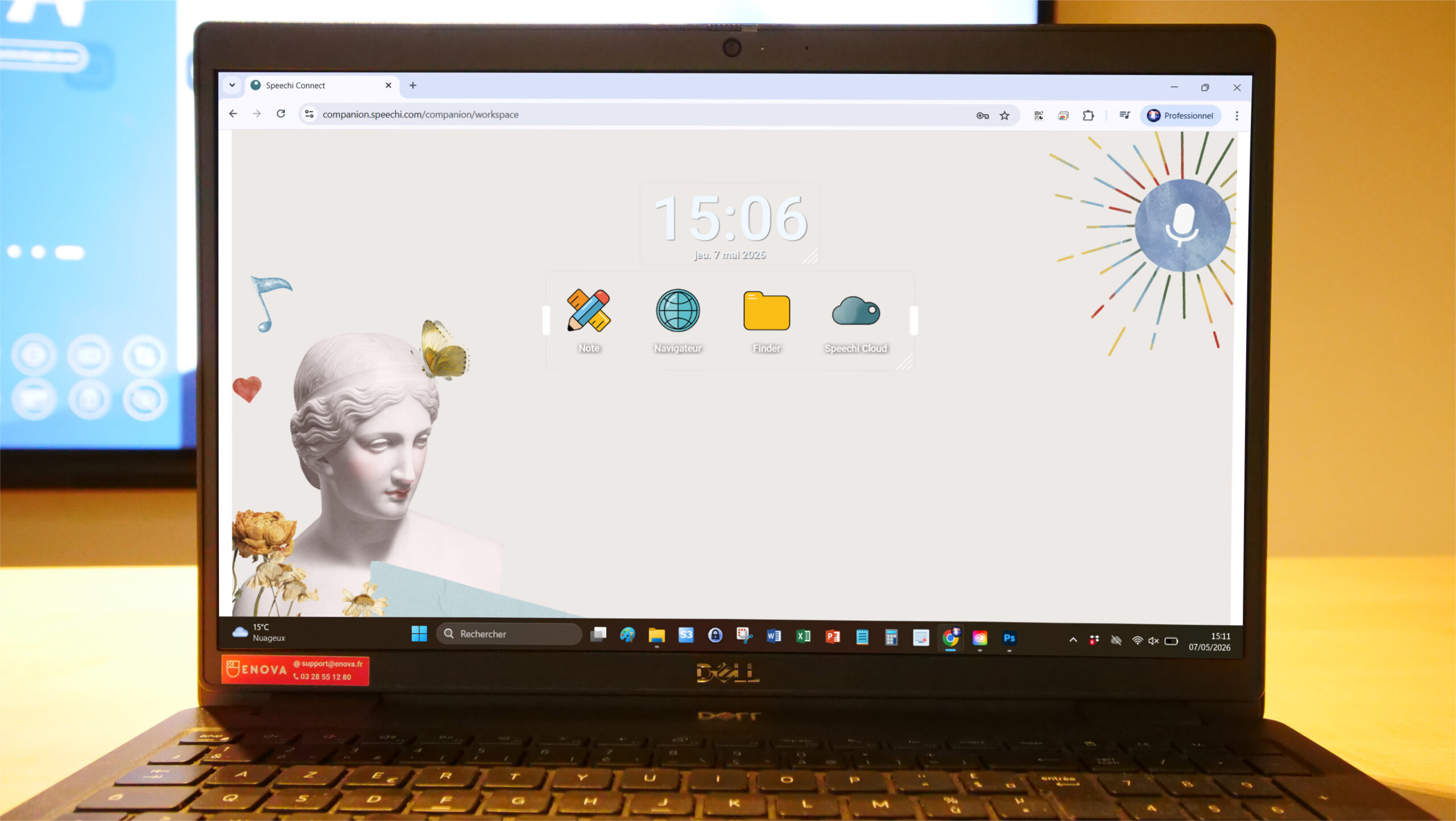
On my PC, tablet, or smartphone, I prepare a workspace that suits me and choose the tools adapted to my classwork.
- I set a wallpaper I like.
- I choose educational applications that serve my goals.
- I choose a layout that suits me.
- I customize my toolbar by removing or adding the tools that will be useful in class.
On the interactive digital display, I log into my workspace and find my wallpaper, my applications with their layout, as well as my customized toolbar.
→ On the interactive display, my class and I enjoy a dedicated, secure, and functional workspace.
→ I am not lost; I master this work environment because I customized it.
→ Thanks to this dedicated space on the display, my PC remains my personal work tool: I remove the worry of displaying private information, and my PC can serve me for other things like checking my lecture notes.
3. I prepare my teaching day
with the “Shared Content” tab of Speechi Connect
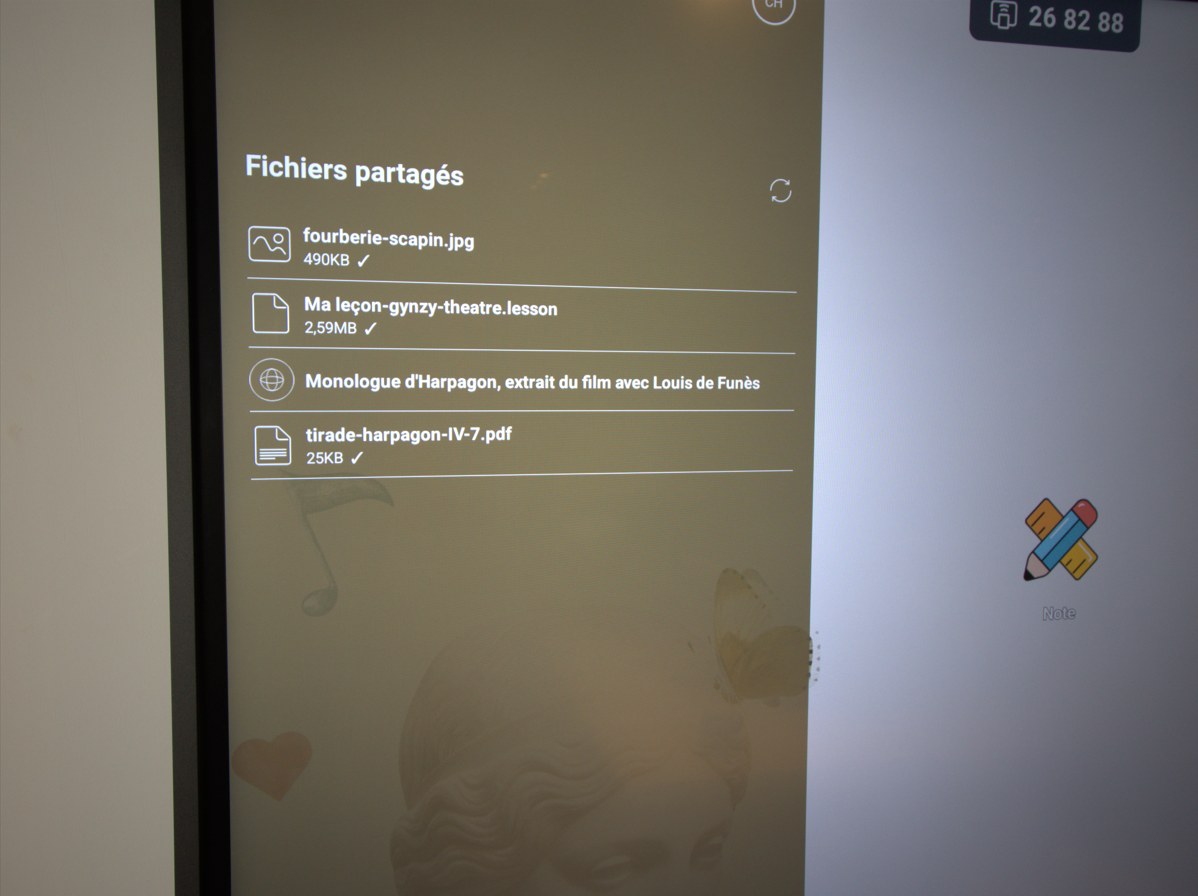
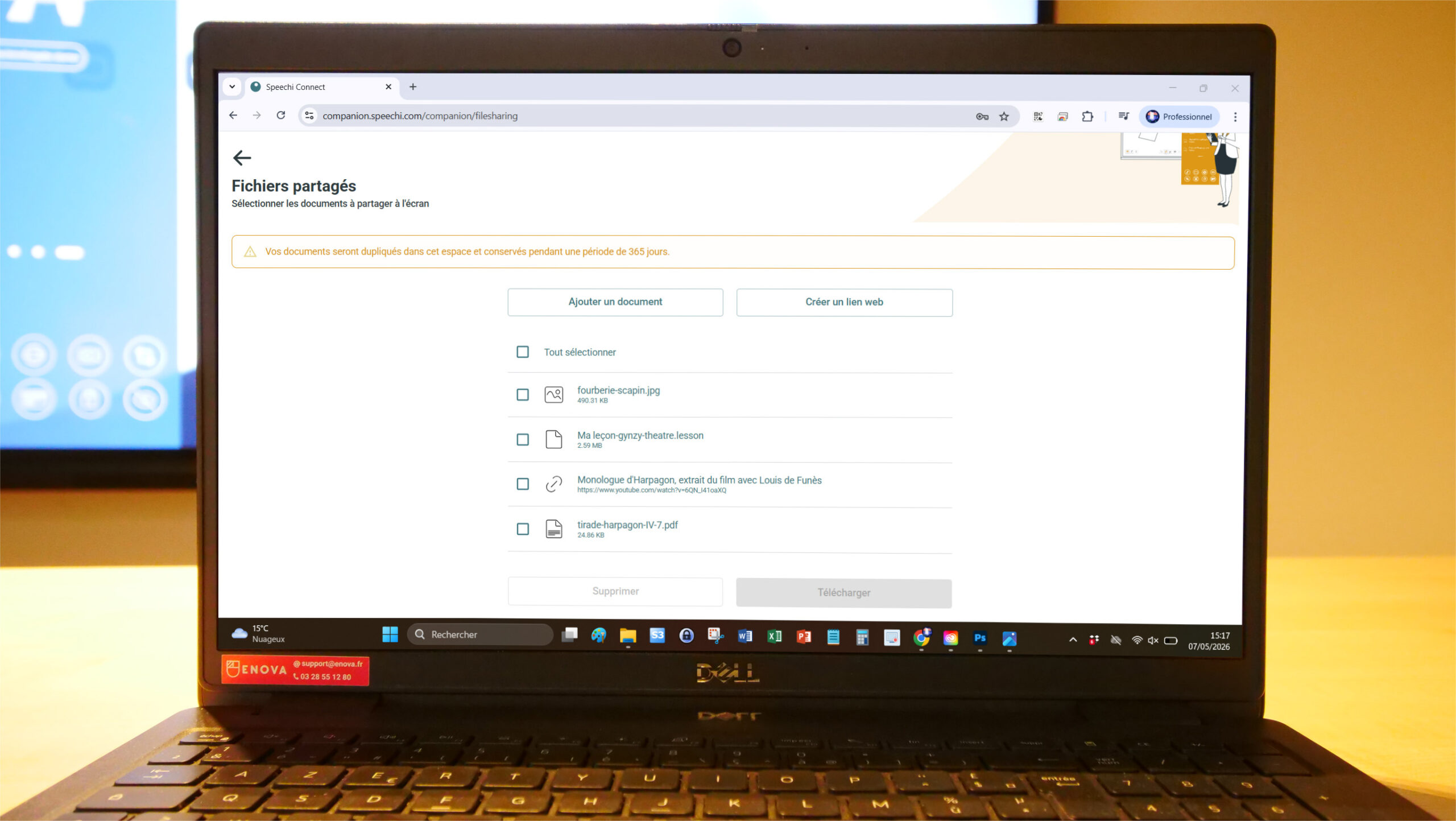
On my PC, tablet, or smartphone, I prepare my day of lessons by putting all the content I want to show on the classroom’s interactive digital display.
- I go to the “Shared Files” tab.
- I download to my space all the documents I need (PDF, video, audio files…).
- I can also attach links (to a website, a YouTube video, etc.).
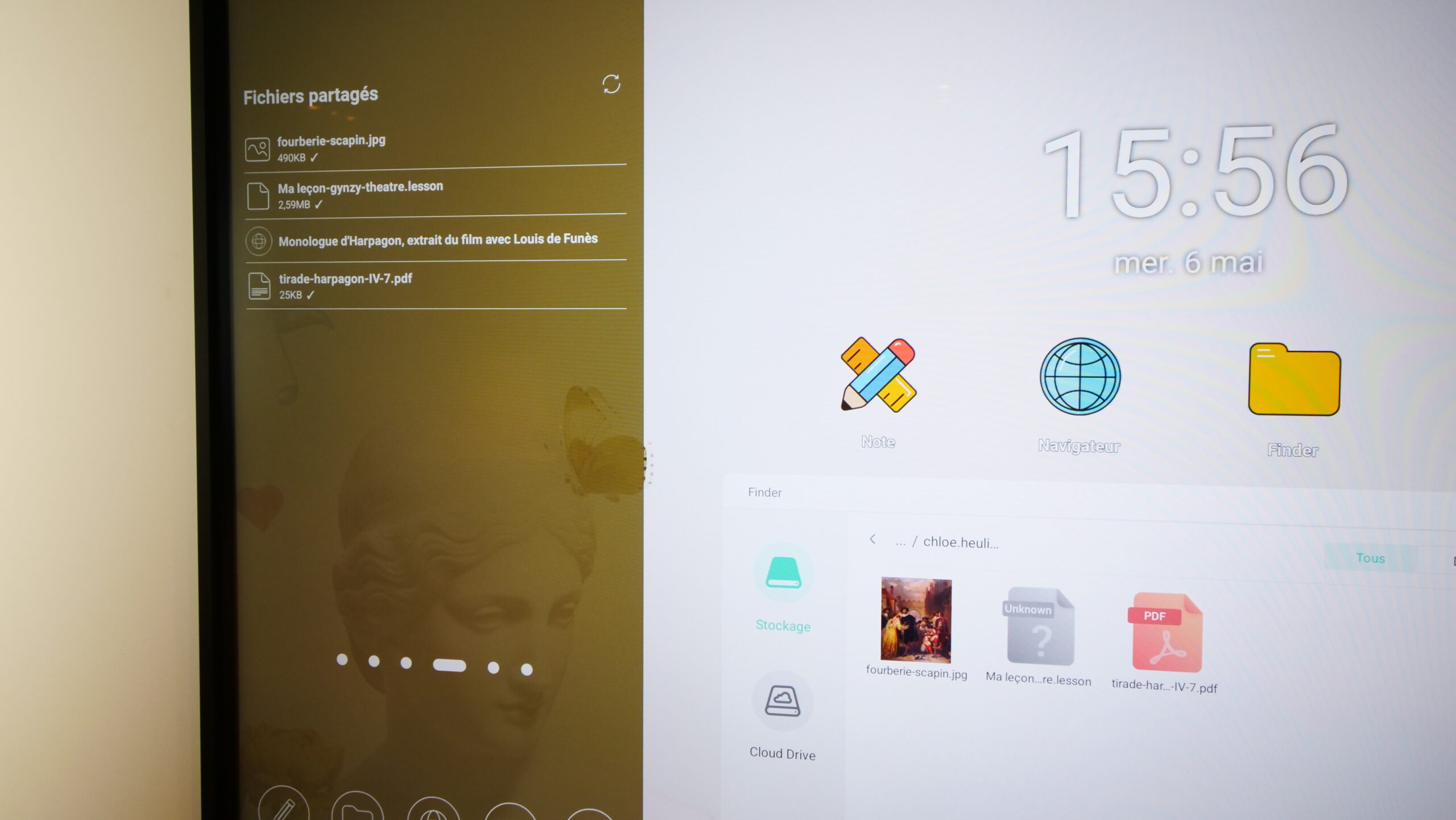
On the interactive digital display, I log into my space and find in the “Shared Content” tab of the Swift Bar all the files and links downloaded from my personal work device.
- I click on the files needed for my class hour so they download onto the screen.
- A checkmark next to each file indicates that the file has successfully downloaded to the display.
- I double-click the file to open the document…
- …or I go to the Finder, then to the folder bearing my name. All downloaded files are stored there.
- At the end of my teaching day, I retrieve all the files saved on the display in the “Shared Files” tab of the application.
→ On the display, I find all the content I need to teach.
→ Only the resources relevant to the lesson are made visible to the class.
→ Once my session is logged out, nothing remains on the interactive screen.
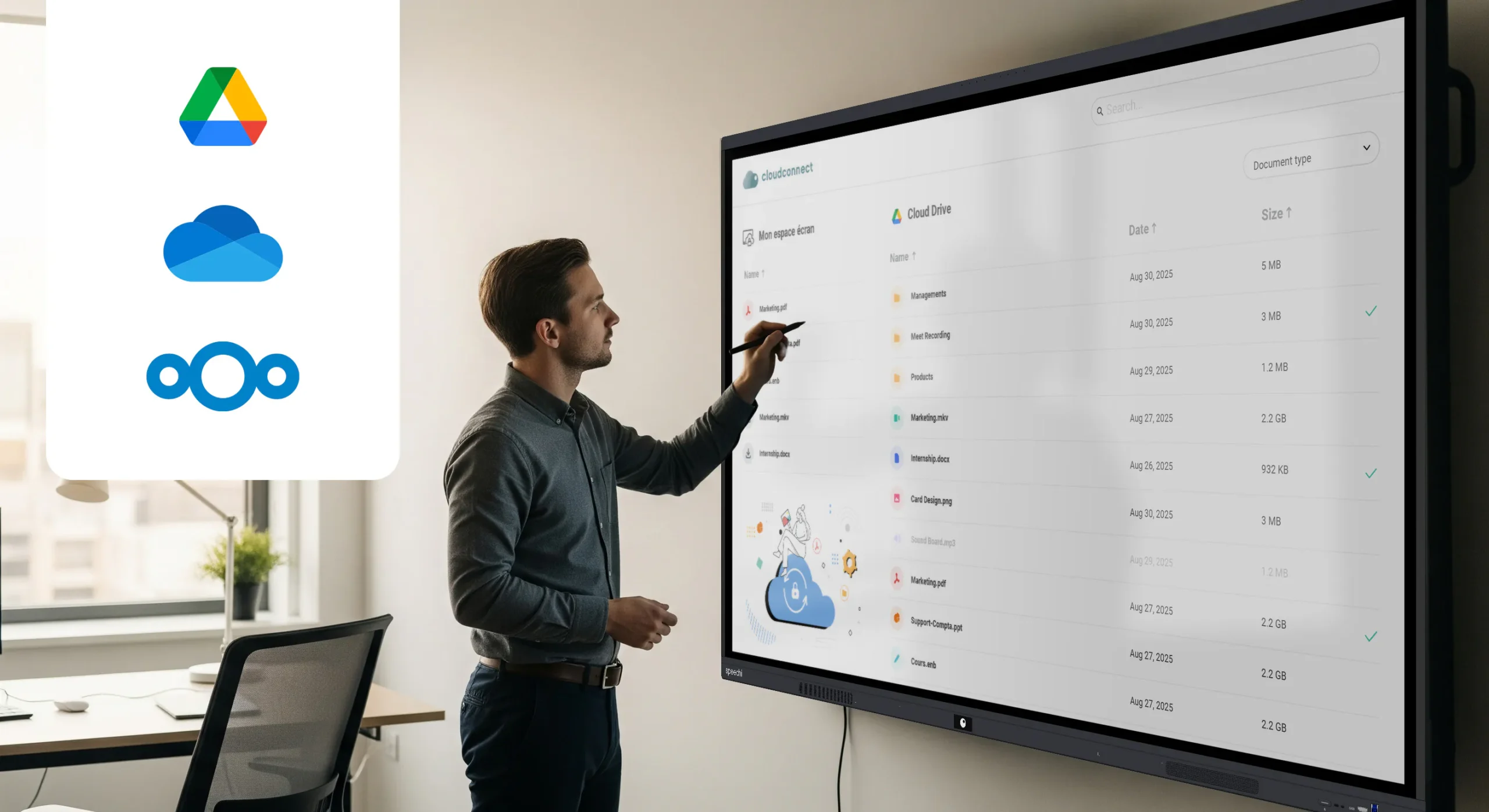
I also have the option to insert access to my Drive on my Connect workspace: Google Drive, One Drive, or Nextcloud.
» Our tutorial to link your Drive to your space
» Our choice to integrate Nextcloud on Speechi Connect
In summary (↑)
For the IT manager
Encouraging teachers to resort to Speechi Connect rather than screen sharing means adopting a more virtuous practice with:
- Preservation of bandwidth
- Amortized power consumption
- A solution that guarantees data protection (GDPR)
- Management and traceability of screen activity made possible
For the teacher
Adopting Speechi Connect means opting for an alternative that brings more peace of mind:
- Reduced digital fatigue: you suffer less from the slowness and bugs of screen sharing.
- Lightened mental load: a clear boundary is set between your personal work tool and the classroom’s work tool, and your confidential data stays that way.
- A workspace dedicated to the interactive display, manageable from your PC: you customize your space and can anticipate your teaching days by putting the resources you will need there.