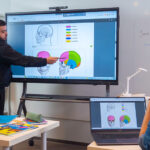
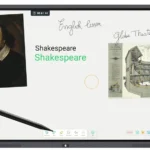
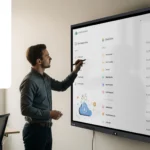
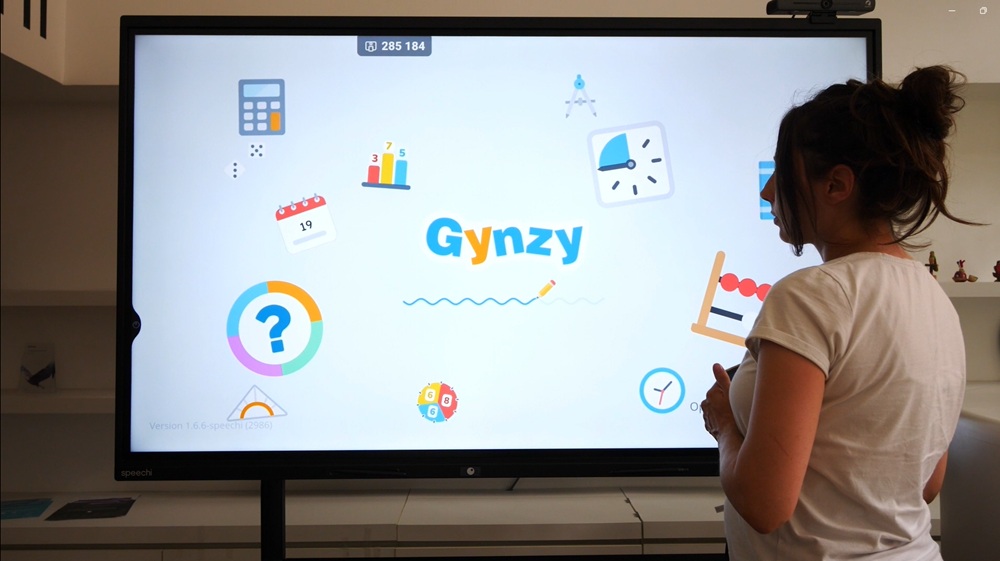
We have recently formed a partnership with Gynzy, a leading European name in digital whiteboards, currently used by 400,000 teachers worldwide. This cross-platform whiteboard—compatible with Mac, Windows, Android, and web browsers—is now available in the Speechi Connect Advanced plan, featuring a simplified login process to ease teachers’ daily digital routines.
How do you access Gynzy on your PC to prepare your lessons? What does the simplified connection to your Gynzy account on the Speechi Interactive Display involve, and how does it work? We explain everything in this first tutorial.
Table of Contents
- Part 1 – Connecting to the Gynzy whiteboard on your PC to prepare your lesson
- Part 2 – Connecting to the Gynzy whiteboard on the Speechi Interactive Display to teach your lesson
- Method 1 – Connecting the Interactive Display to your Speechi Connect account via PC
- Method 2 – Connecting the Interactive Display to your Speechi Connect account via smartphone
- Part 3 – Finding your Gynzy lesson materials on the Speechi Interactive Display
Before you begin...
The only thing you need to have on hand is your Speechi Connect login credentials (email/username and password)—that’s it! For the rest, we will guide you step-by-step through this tutorial.
▶️ Watch the video tutorial
Part 1 – Connecting to the Gynzy whiteboard on your PC (↑)
Let’s start before you enter the classroom: the preparation phase. Whether you want to create lesson materials or get to grips with and explore Gynzy’s tools, we will show you how to log into your digital whiteboard from your PC.
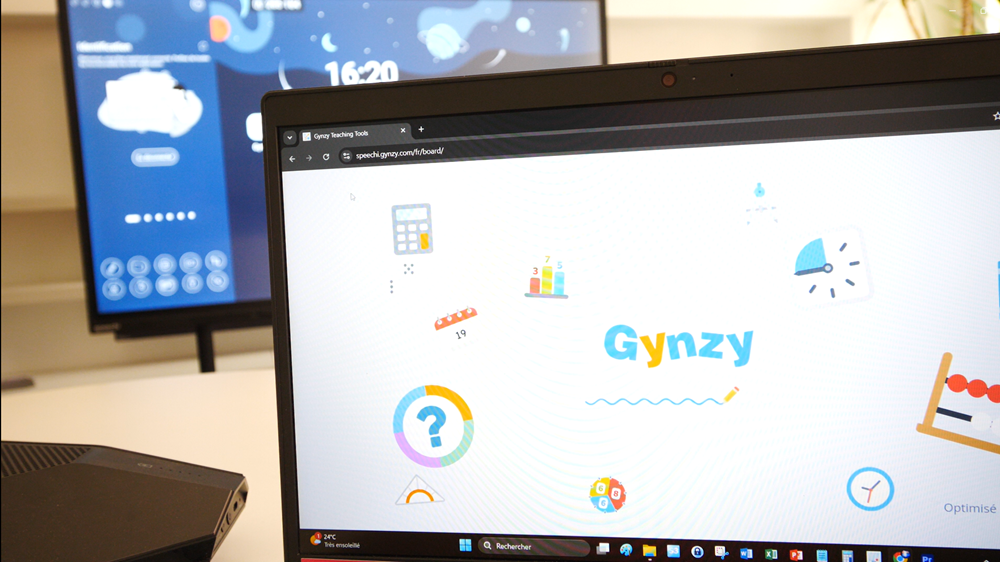
↓ Step 1 – Type the following URL into your browser’s address bar: https://speechi.gynzy.com. You are now on the Gynzy digital whiteboard. Let’s see how to log into your account.

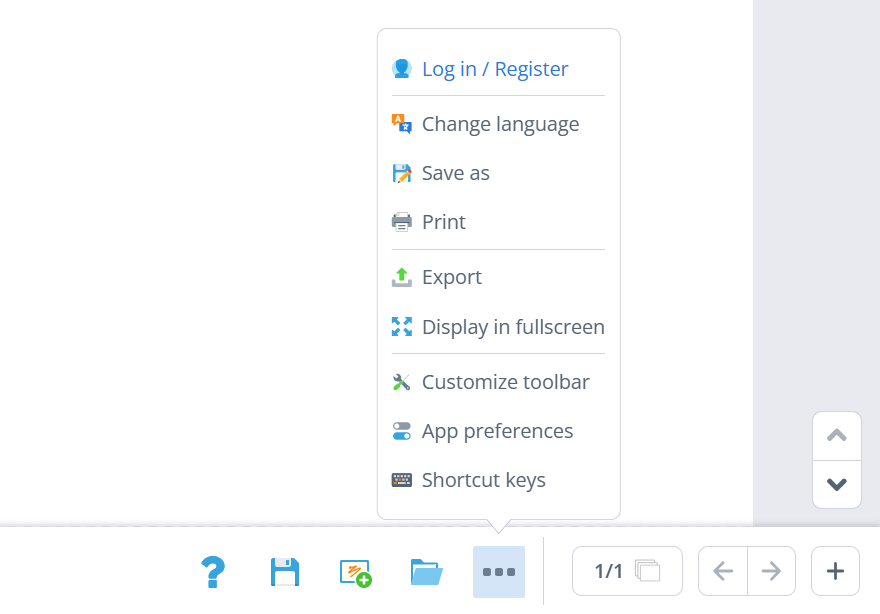
← Step 2 – In the toolbar, click on the “More options” button, then on “Log in / Register”.
Step 3 →
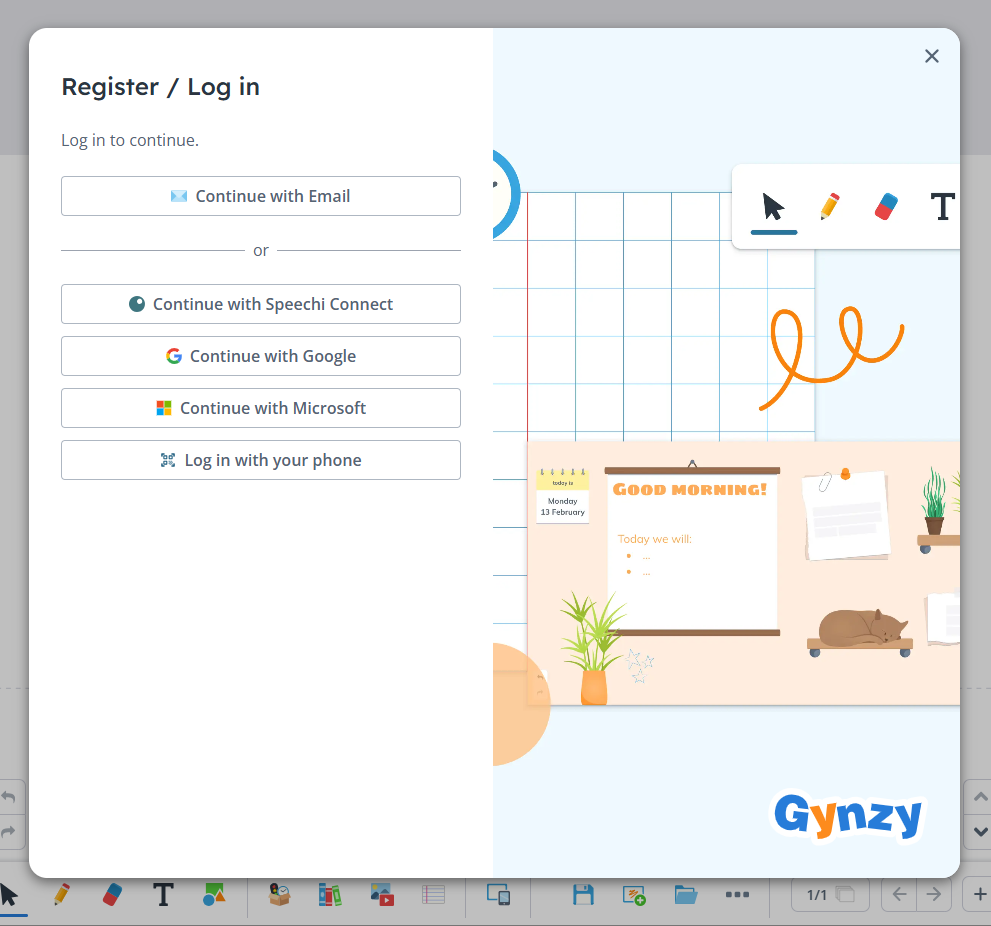
Several login options are available. Click on “Continue with Speechi Connect” and enter the username and password you usually use to log into your Speechi Connect account.
That’s it! You are now logged into your Gynzy account and can be sure to find all your Gynzy lesson materials on any Speechi Interactive Display in your school!
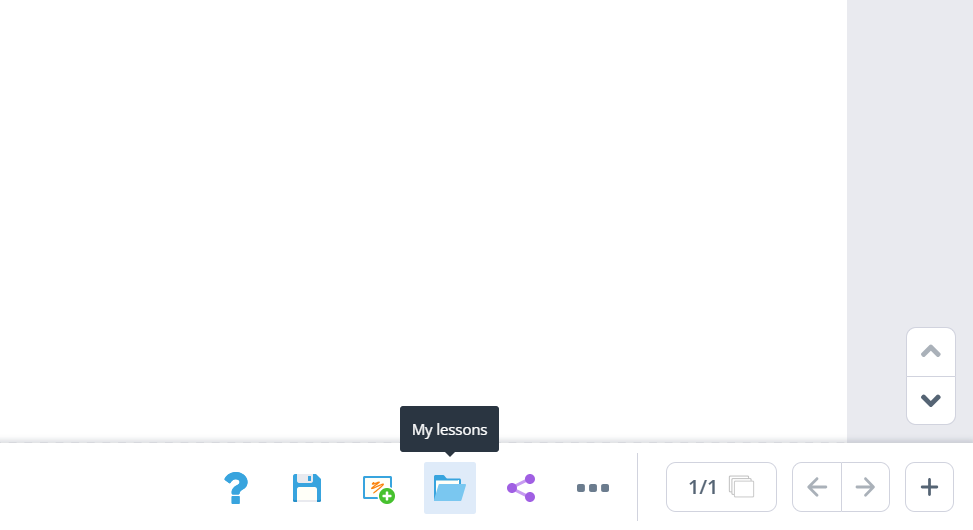
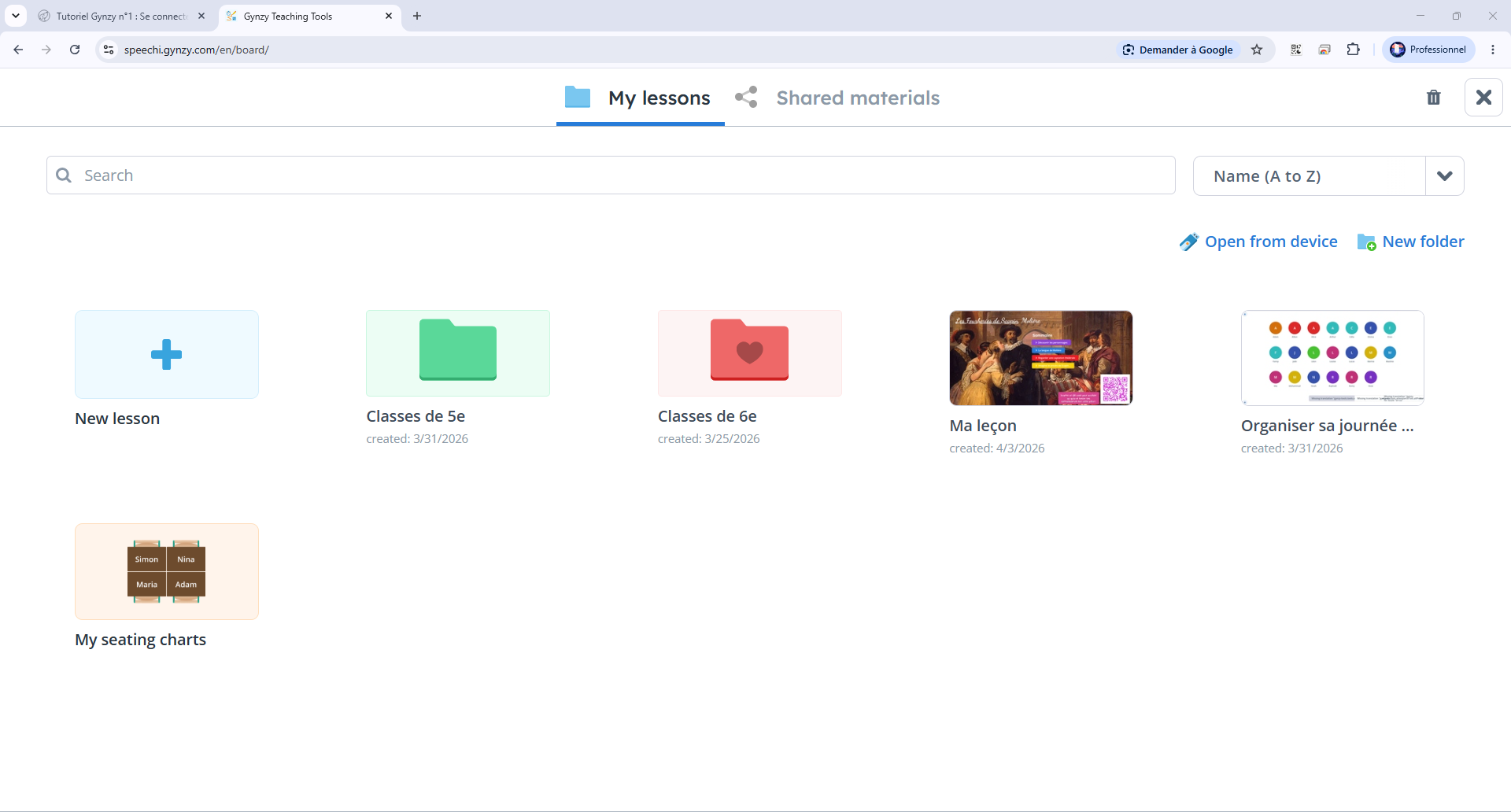
Final Step ↑ Once your 1st lesson document is created, remember to save it, of course. You will find it in “My Lessons” (the toolbar button depicting a blue folder).
Part 2 – Connecting to the Gynzy whiteboard on the Speechi Interactive Display (↑)
Now that you have created your teaching materials on your PC, let’s head into the classroom to use them on the Interactive Display. It’s very simple! As mentioned in the introduction, all you need to do is connect your Speechi Connect account to the Interactive Display to be automatically logged into your Gynzy whiteboard and find all your resources.
↓ Below is a reminder of the 2 possible methods to retrieve your Connect workspace on the Speechi Interactive Display.
Method 1 (↑)
Connecting the Interactive Display to your Speechi Connect account
via PC
↓ Step 1 – Type the following URL into your browser’s address bar: https://companion.speechi.com/login.

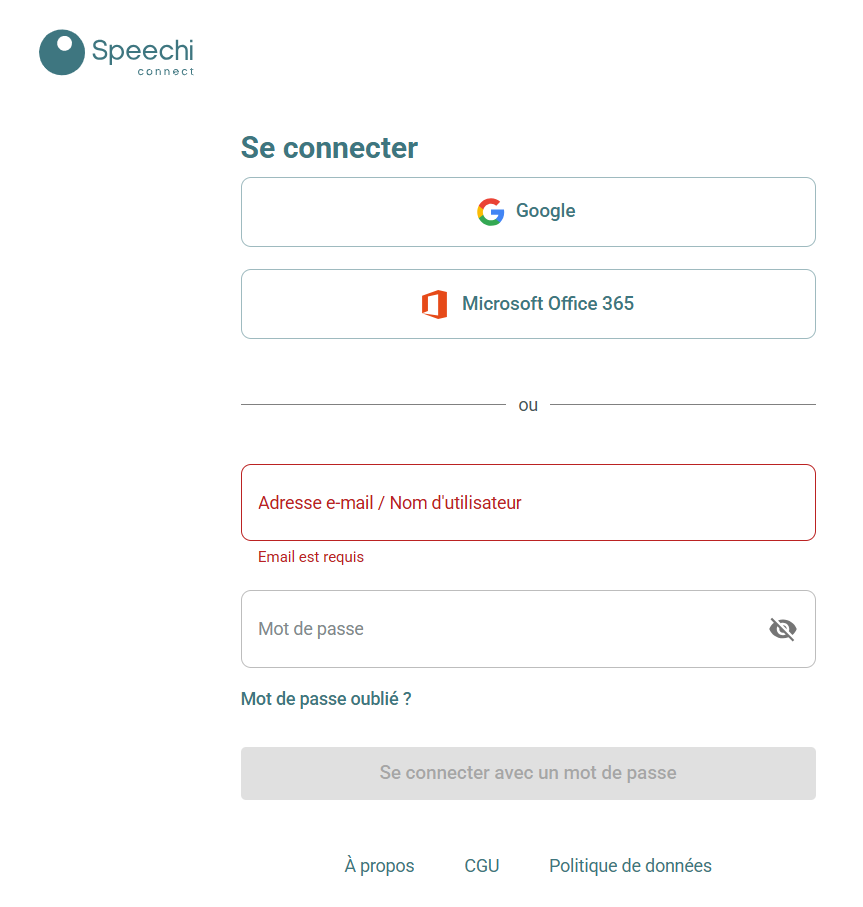
← Step 2 – Enter the username and password for your Speechi Connect account.
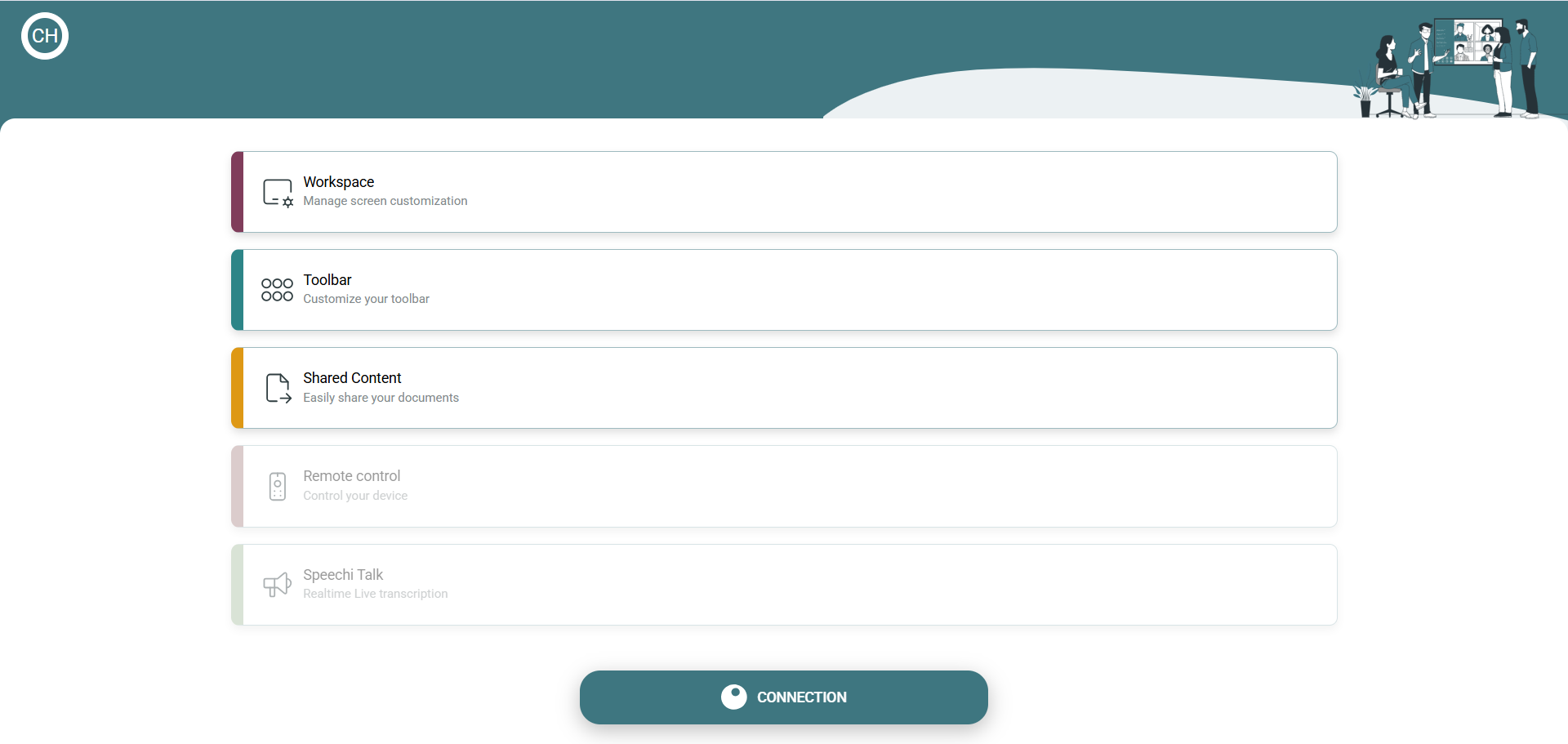
↓ Step 3 – Once logged into your Connect account, click on the “Connection” button.
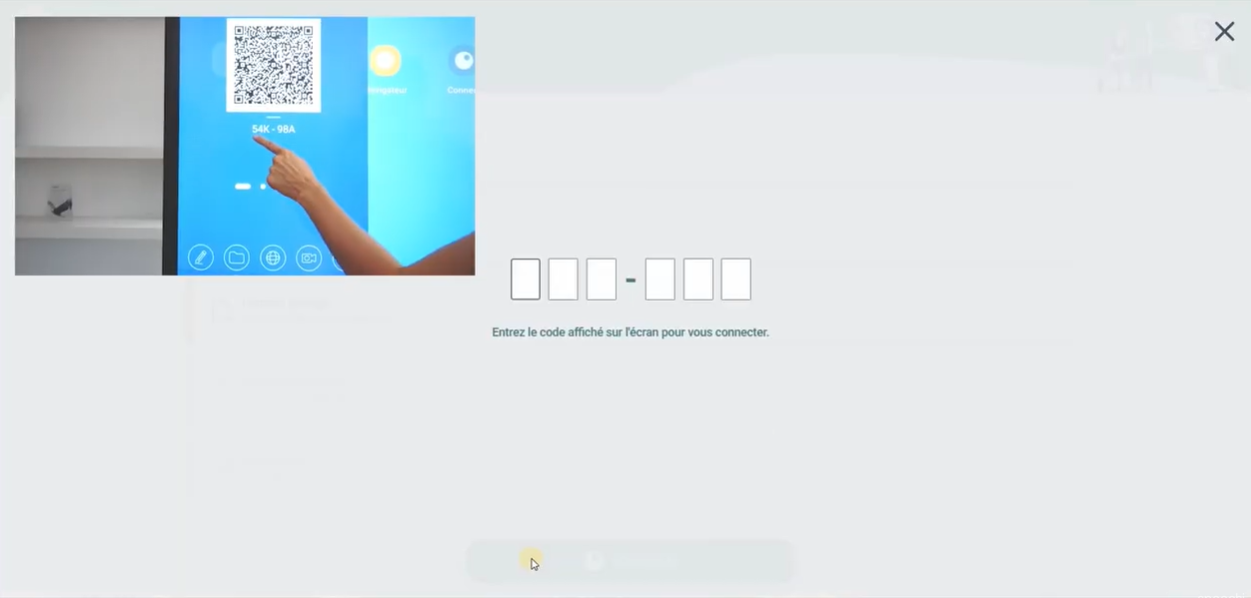
↓ Step 4 – Enter the code shown under the QR code on the Swift Bar on the Interactive Display. After a few seconds, you will be connected: your personal workspace will appear on the interactive screen.
Method 2 (↑)
Connecting the Interactive Display to your Speechi Connect account
via smartphone
↓ Step 1 – Launch the Speechi Connect app, log in, and click on the “Connection” button.
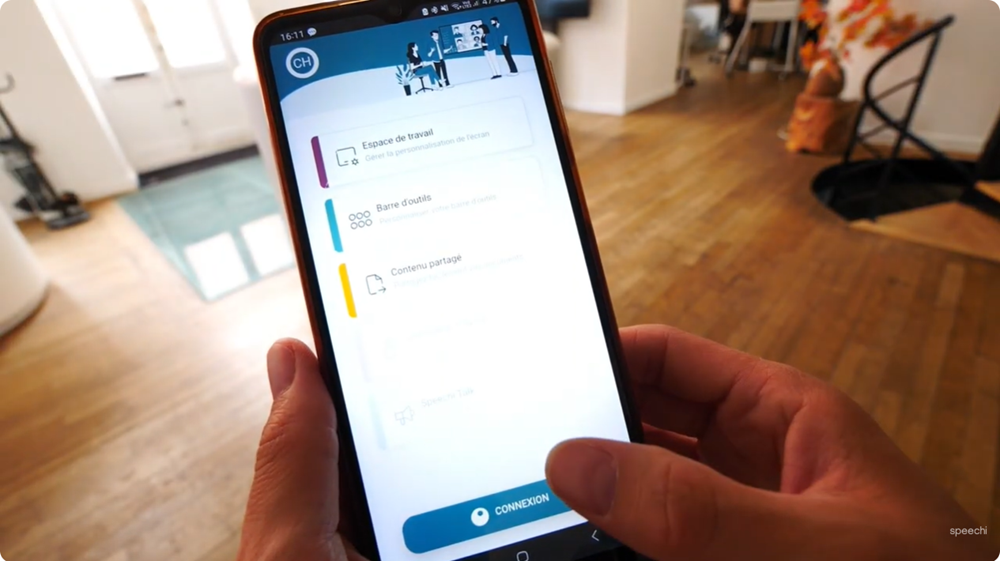
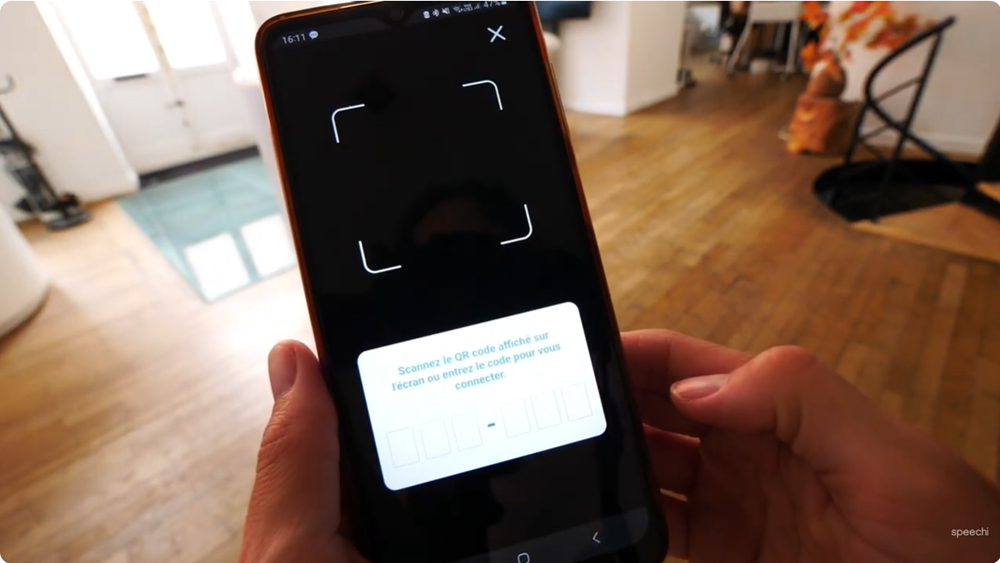
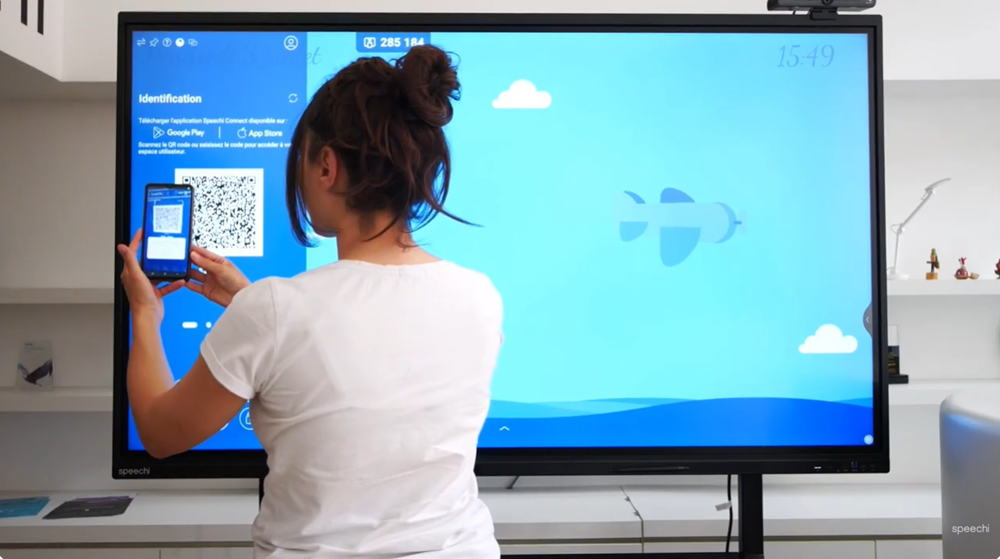
↓ Step 2 – Scan the QR code displayed in the Swift Bar of the Speechi Interactive Display. After a few seconds, you will be connected: your personal workspace will appear on the interactive screen.
Part 3 – Finding your lesson materials on the Speechi Interactive Display (↑)
You are now connected not only to your Speechi Connect workspace but also to your Gynzy account! Launch the Gynzy app, and let’s see how to find the resources you prepared on your PC.
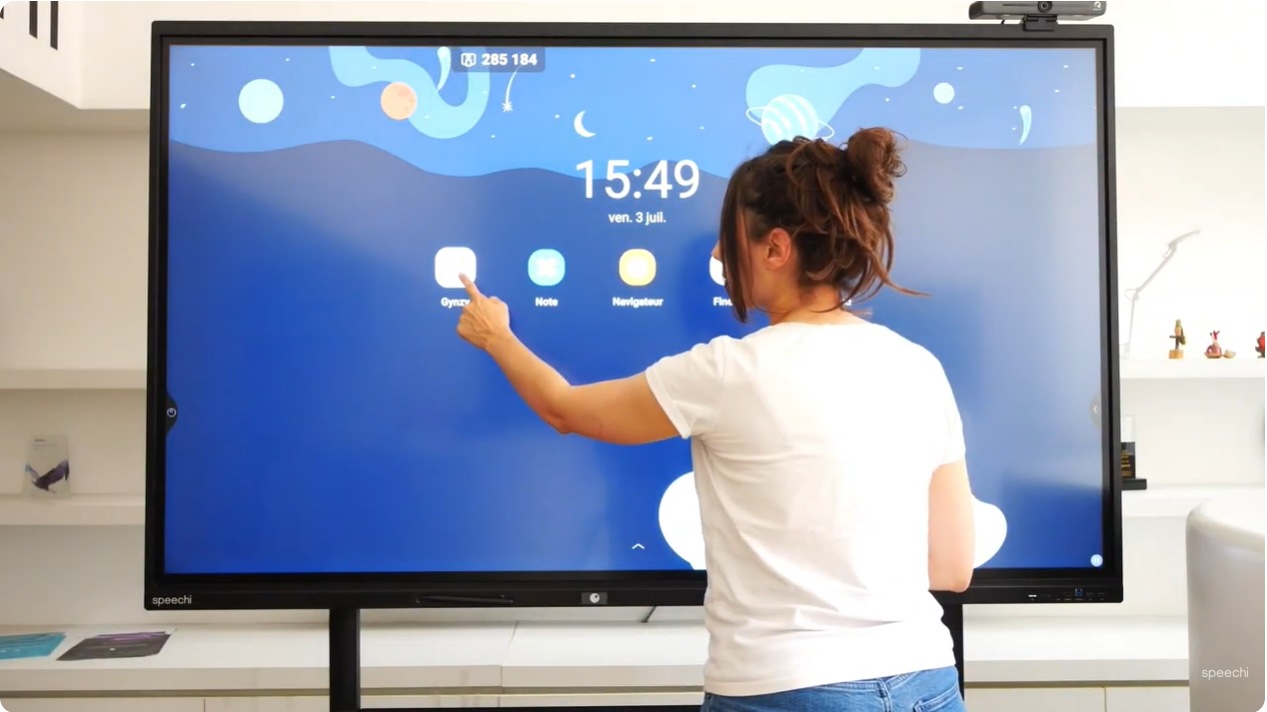
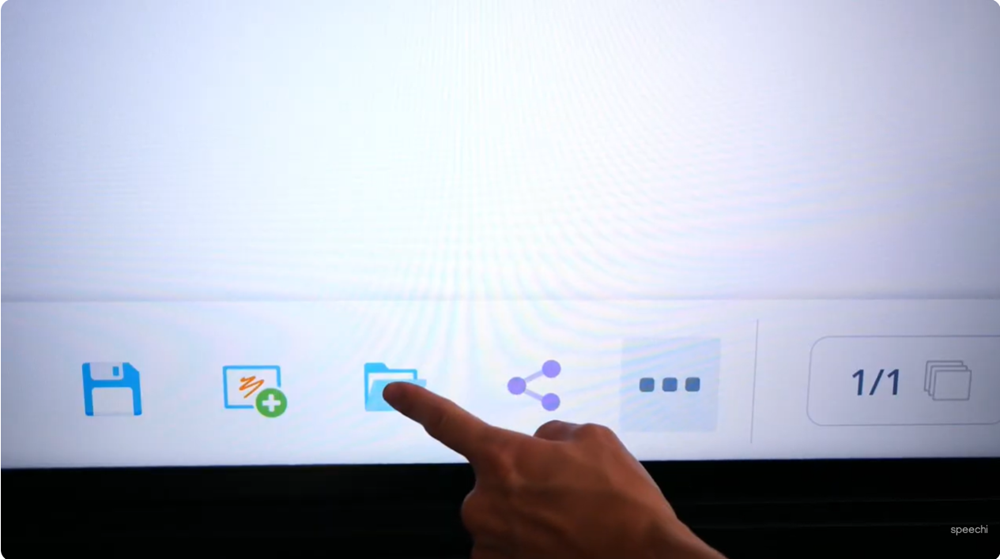
↑ Step 1 – In the toolbar, click on the “My Lessons” folder.
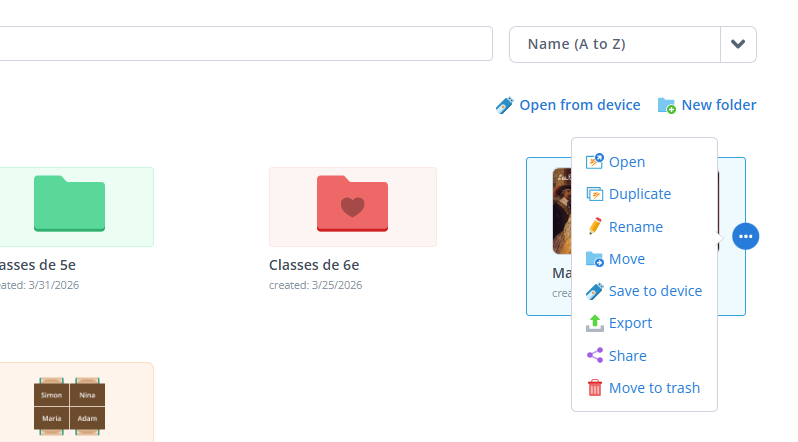
↑ Step 2 – Click on the resource you want to open, then on the blue button, and finally on “Open”.
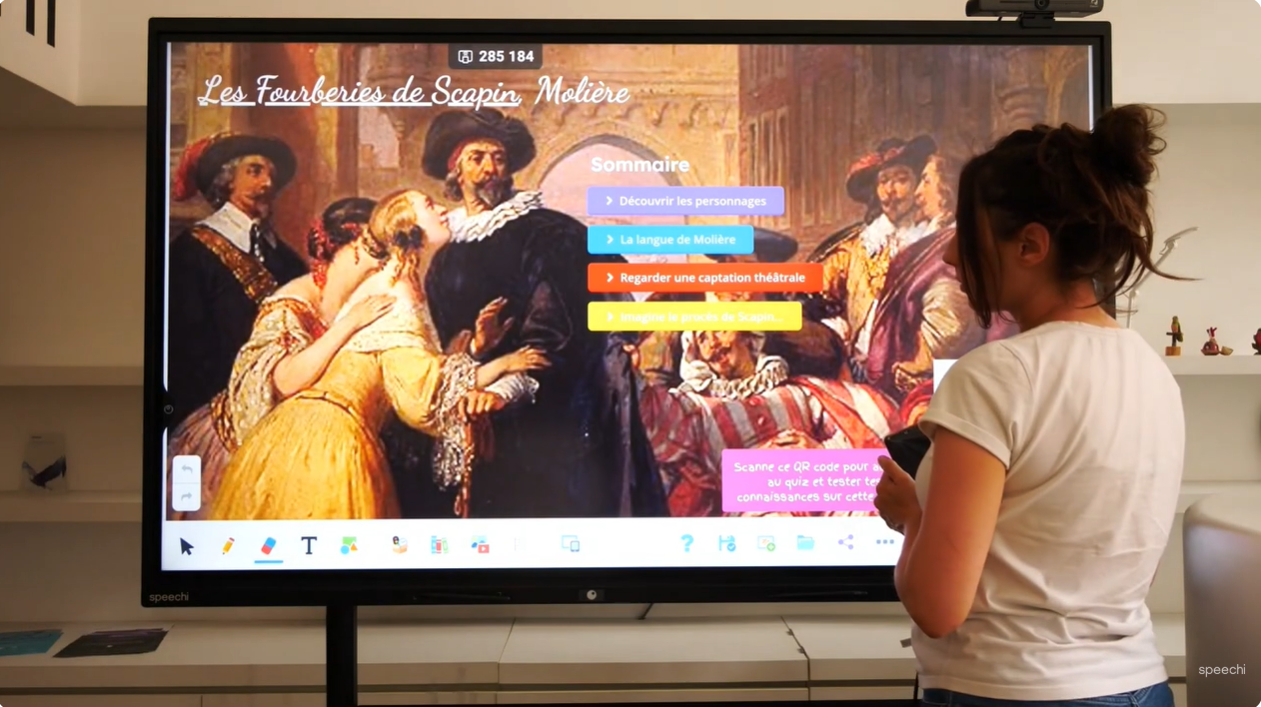
Your document will open on the whiteboard. The lesson can begin!
Key Takeaways
- Gynzy is whiteboard software accessible from any computer/device via the URL https://speechi.gynzy.com.
- On the Interactive Display, authentication is simplified thanks to a single sign-on: you just need to log into Speechi Connect as usual to be automatically connected to your Gynzy account.