

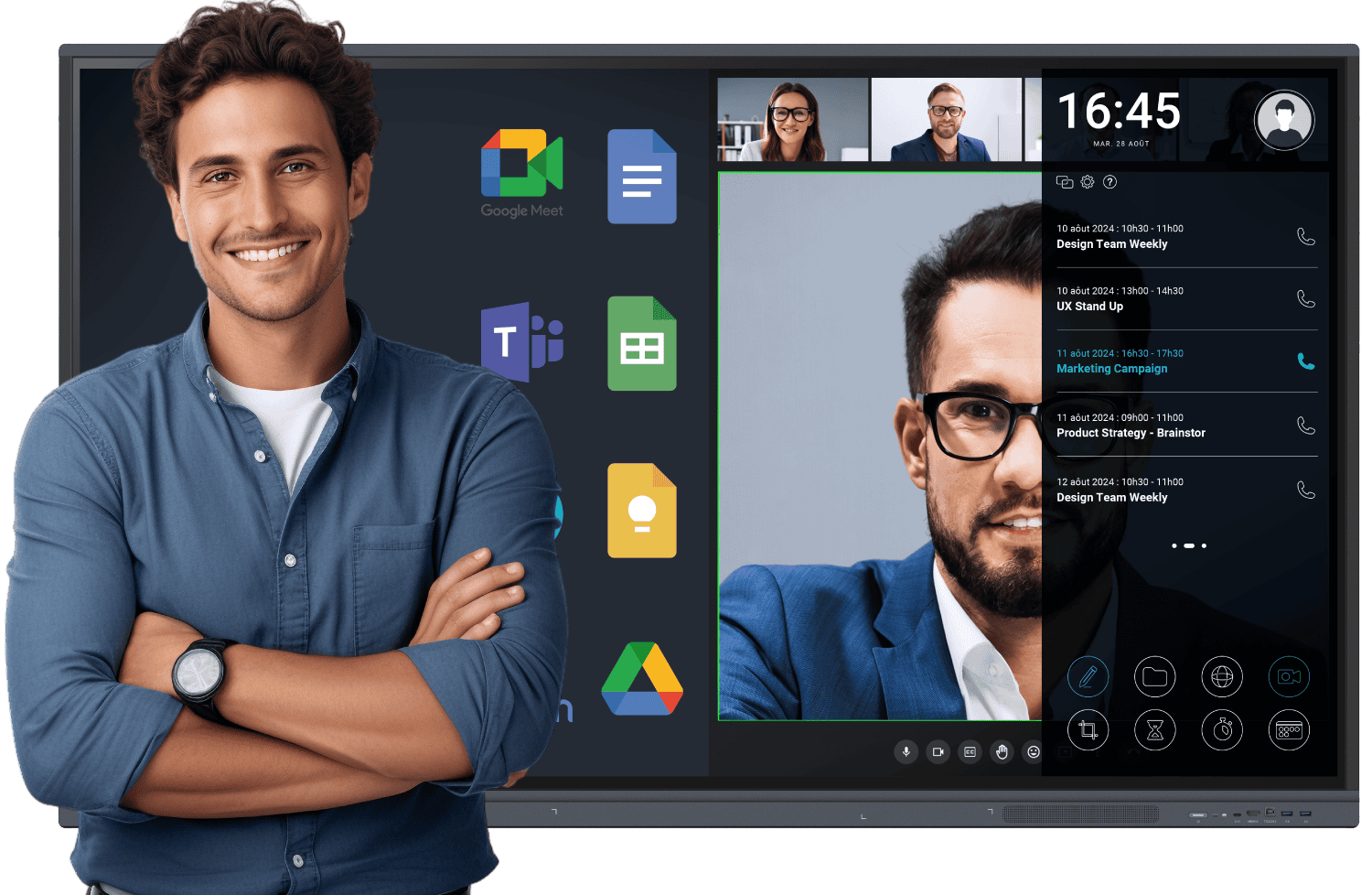
Enhance Remote Meetings with Microsoft Teams
To make the most of Microsoft Teams, it is important to combine the software with the right hardware. Teams integrates discussions, file sharing, video calls, scheduling, and live document co-editing, making it a central tool for remote and hybrid work. However, using Teams on a small laptop or basic screen limits interaction, reduces visibility, and prevents smooth content sharing. Good software alone is not enough; high-performance equipment, such as Speechi interactive screens, transforms meetings into fluid, collaborative, and productive sessions.
How Interactive Screens Improve Teams Meetings
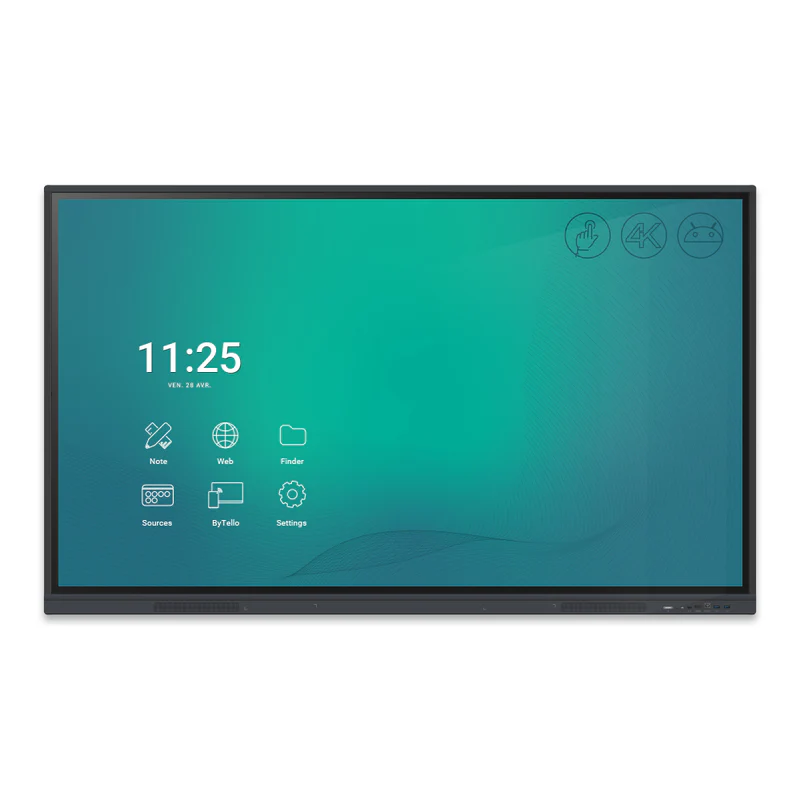
Interactive screens combine a large touchscreen, high-quality display, and Android or dual Windows system with integrated collaboration tools. With a Speechi screen, you can launch Teams directly, open shared files without an external PC, annotate live on documents, collaborate on an interactive whiteboard, and involve remote participants as if they were in the room. This setup allows team leaders to display schedules, annotate tasks, and instantly share updated files, making meetings more efficient and engaging.
Choosing the Right Screen and Maximising ROI
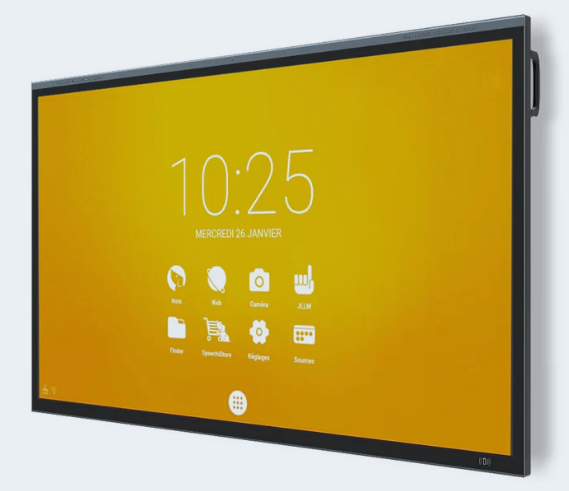
The ideal screen depends on room size, system requirements, mobility, and accessories. Small offices benefit from 55–65-inch screens, standard meeting rooms from 75-inch, and boardrooms or training spaces from 86-inch or larger. Windows OPS modules support advanced Teams features, while cameras, microphones, and soundbars enhance collaboration. Investing in an interactive screen delivers dynamic exchanges, shorter and better-structured meetings, improved remote collaboration, and long-term value, optimising your Teams meetings for years without extra subscription costs.
Read our article about Zoom or Microsoft Teams, to choose the best digital whiteboard software for remote and collaborative working !
 Zoom or Microsoft Teams – choosing the best digital whiteboard software for remote and collaborative working
 The benefits of interactive whiteboards for home use, remote working, and homeschooling
 The interactive whiteboard – a driver of remote collaboration
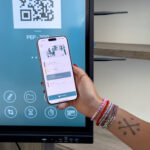 A remote control App for interactive screens !
