Enhance Remote Meetings with Microsoft Teams
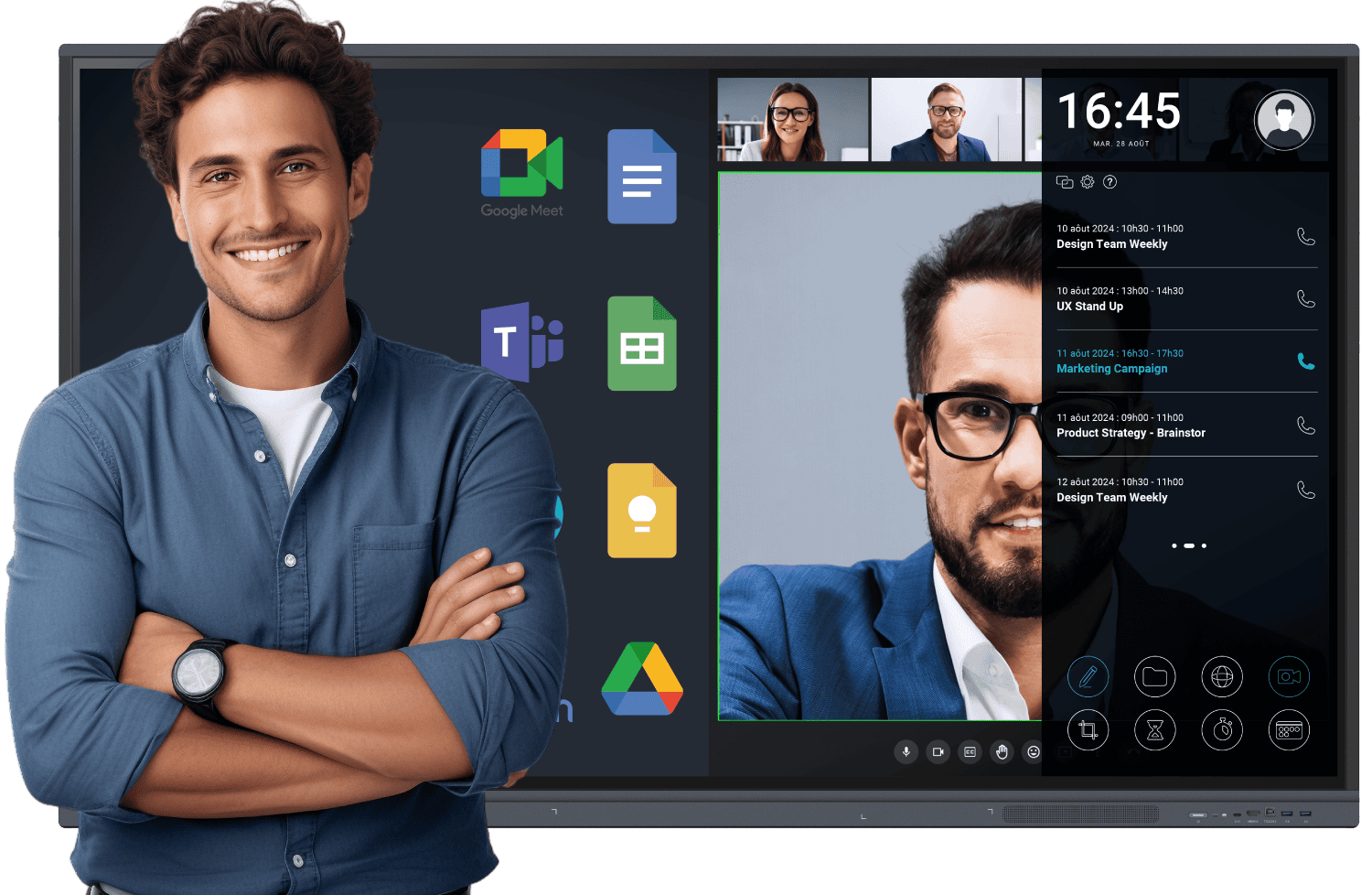
To make the most of Microsoft Teams, it is important to combine the software with the right hardware. Teams integrates discussions, file sharing, video calls, scheduling, and live document co-editing, making it a central tool for remote and hybrid work. However, using Teams on a small laptop or basic screen limits interaction and reduces visibility. Based on expert advice from Speechi, high-performance equipment transforms meetings into fluid, collaborative, and productive sessions.
How Interactive Screens Improve Teams Meetings
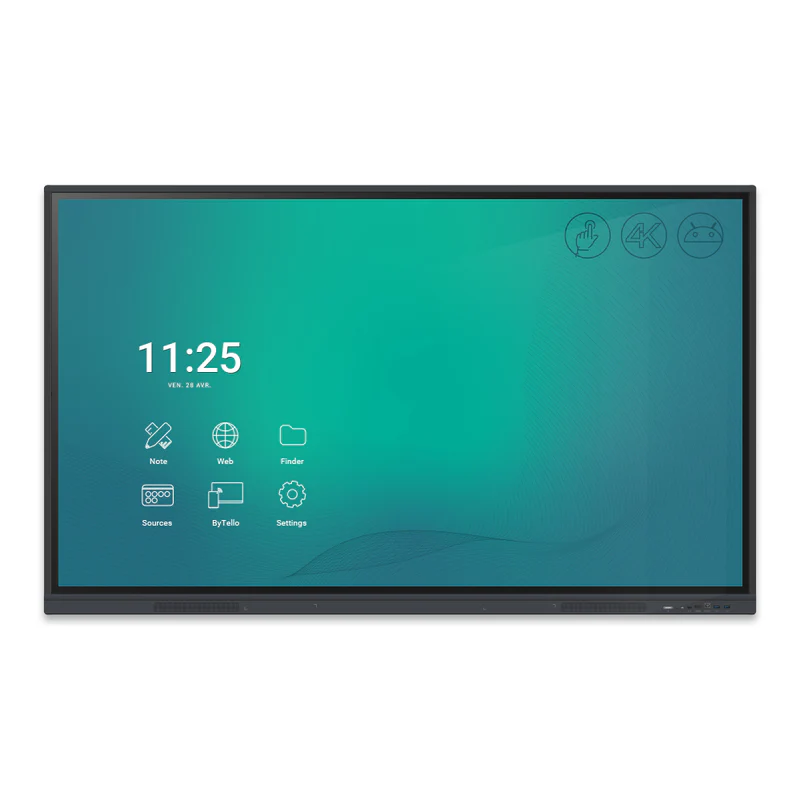
Interactive screens combine a large touchscreen, high-quality display, and Android or dual Windows system with integrated collaboration tools. With a Speechi screen, you can launch Teams directly, open shared files without an external PC, and use a dedicated app for interactive screens to involve remote participants. As seen in the case study at the University of Lille, this setup allows team leaders to display schedules, annotate tasks, and instantly share updated files, making meetings more efficient.
Choosing the Right Screen and Maximising ROI
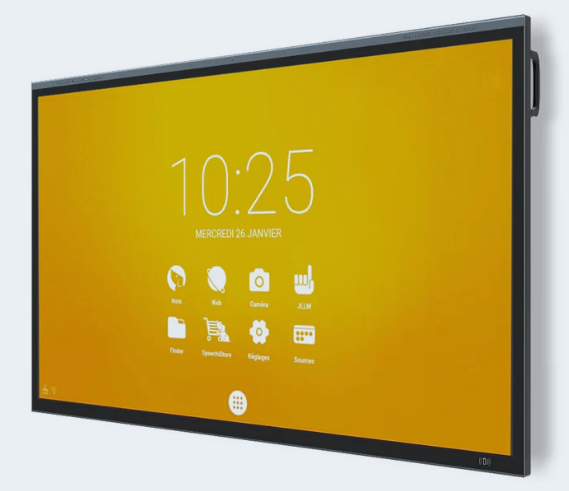
The ideal screen depends on room size, system requirements, mobility, and accessories. Small offices or a
Read our article about Zoom or Microsoft Teams, to choose the best digital whiteboard software for remote and collaborative working !