

In this comprehensive and detailed tutorial, we explain the three possible methods for connecting your PC to the Speechi interactive display — allowing you not only to mirror your screen but also to enable touch control so you can operate your PC directly from the interactive display.
🎥 Video Tutorial (↑)
How to connect your PC to the Speechi interactive display?
Method 1: Wired Connection (↑)
Simple and efficient, this method has the advantage of working without a WiFi network!
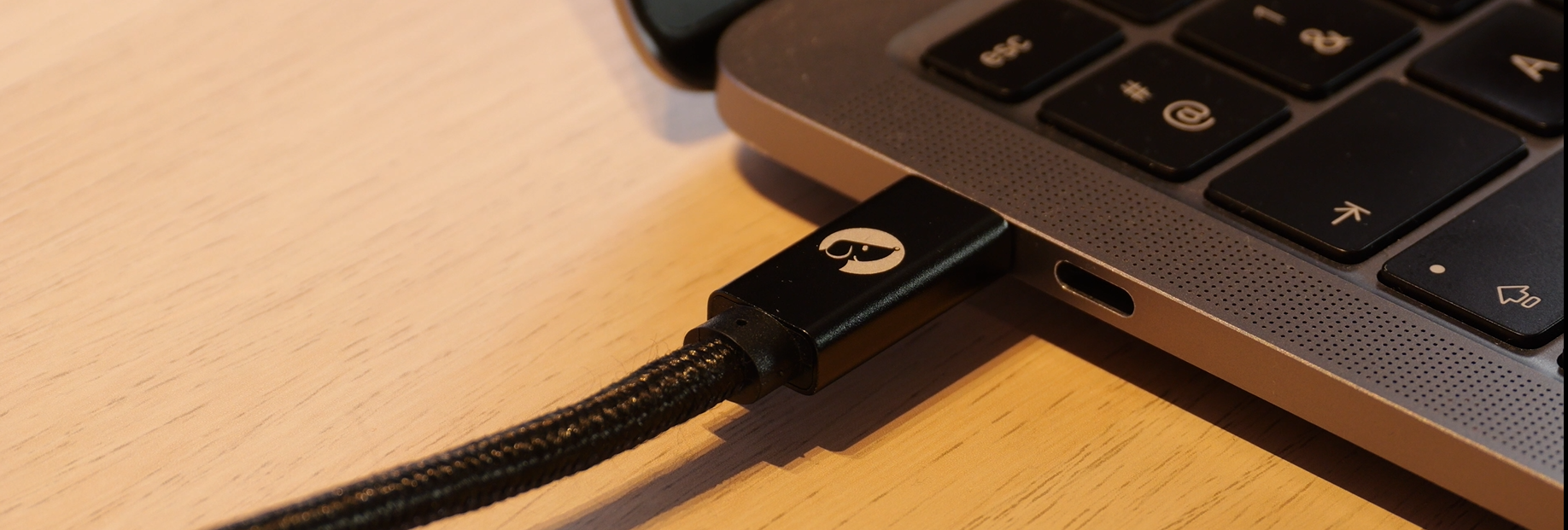
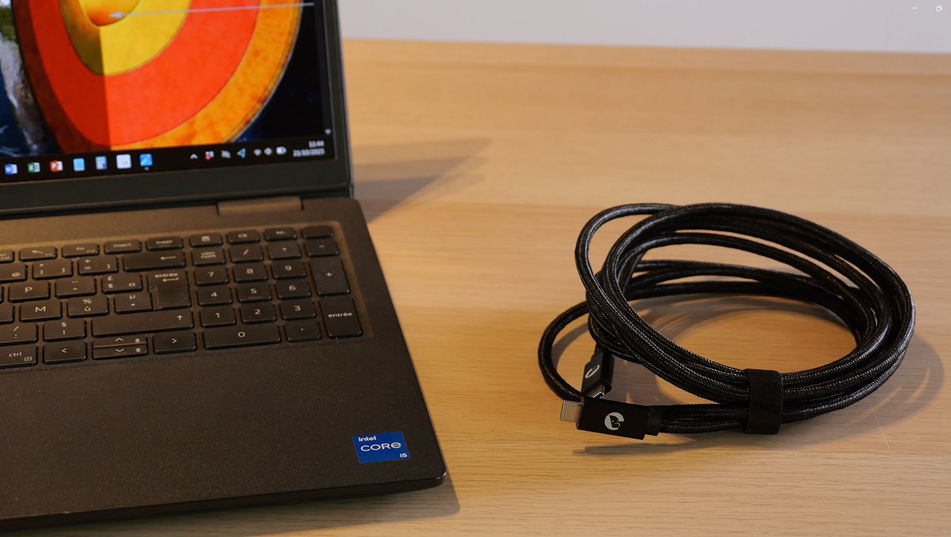
For PCs with a USB-C port
Plug the Speechi USB-C cable between your Windows or Mac PC and your interactive display.This all-in-one USB-C cable enables mirroring*, touch control, and PC charging simultaneously.

For PCs without a USB-C port
Connect your PC to the interactive display using an HDMI cable to transmit the video signal, and a USB-Touch cable to enable touch feedback.This setup allows you to control your PC directly from the interactive display.
* Mirroring: your PC screen is projected “as a mirror” onto the interactive display — also commonly referred to as screen sharing.
** Both cables are included with the Speechi interactive display.
Method 2: Bytello Share (↑)
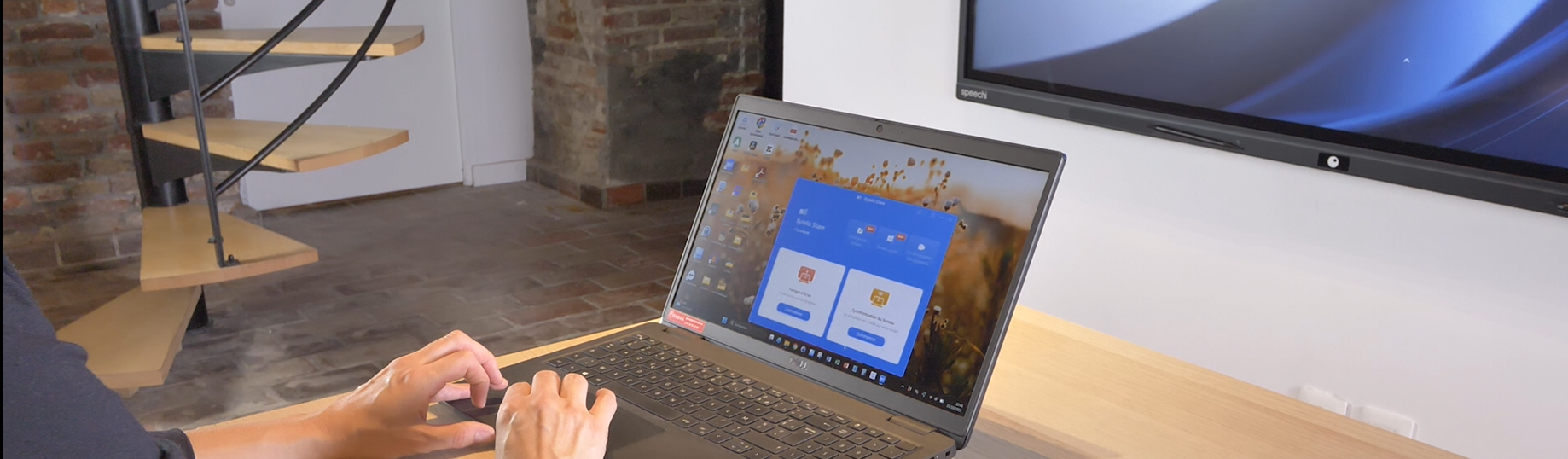
Connecting your PC to the interactive display using Bytello Share
 |
First, install Bytello Share by visiting the dedicated download page and selecting the version compatible with your device. Then, launch the application. Once open, you’ll be prompted to enter a code. |
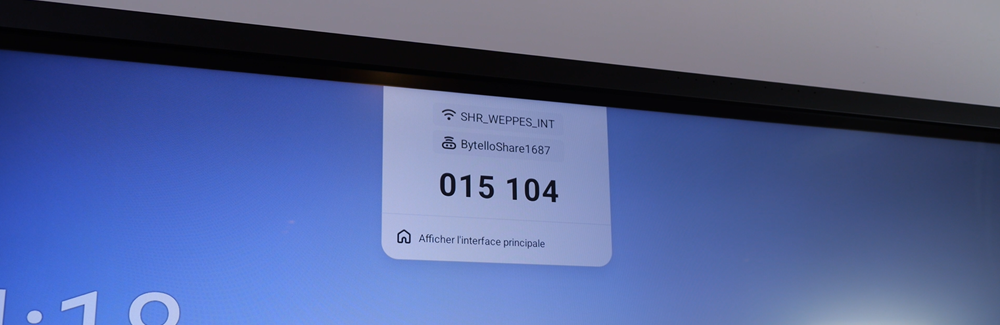
1- Copy the code displayed at the top of the interactive screen. The screen also indicates the WiFi network the display is connected to.
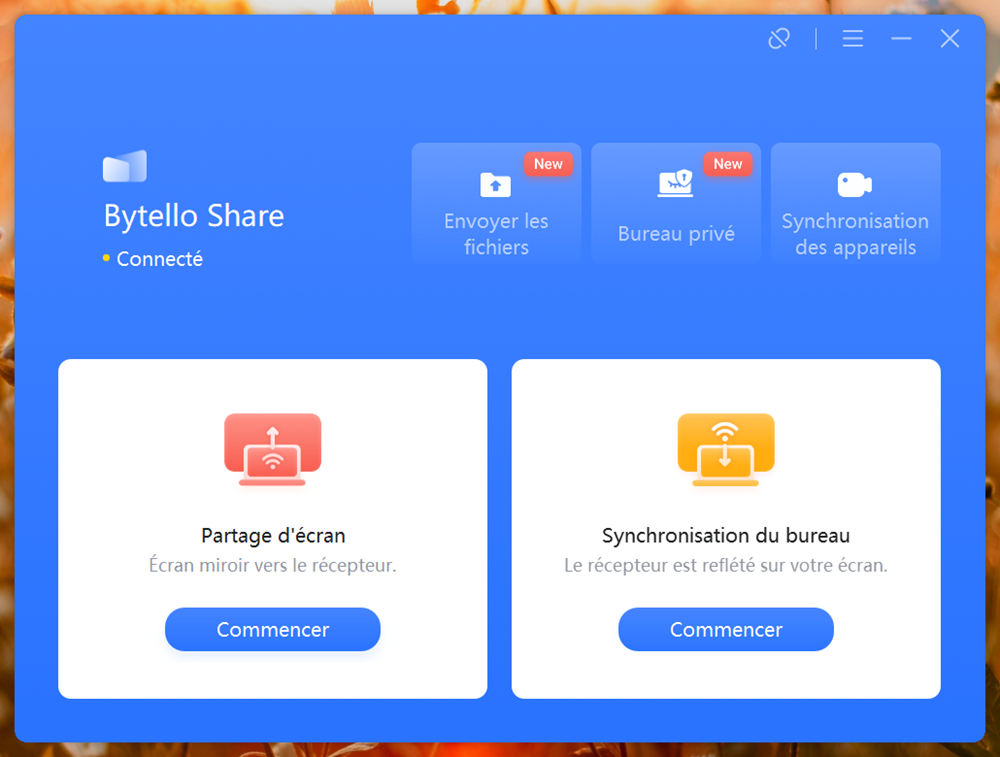
2- Start screen sharing.
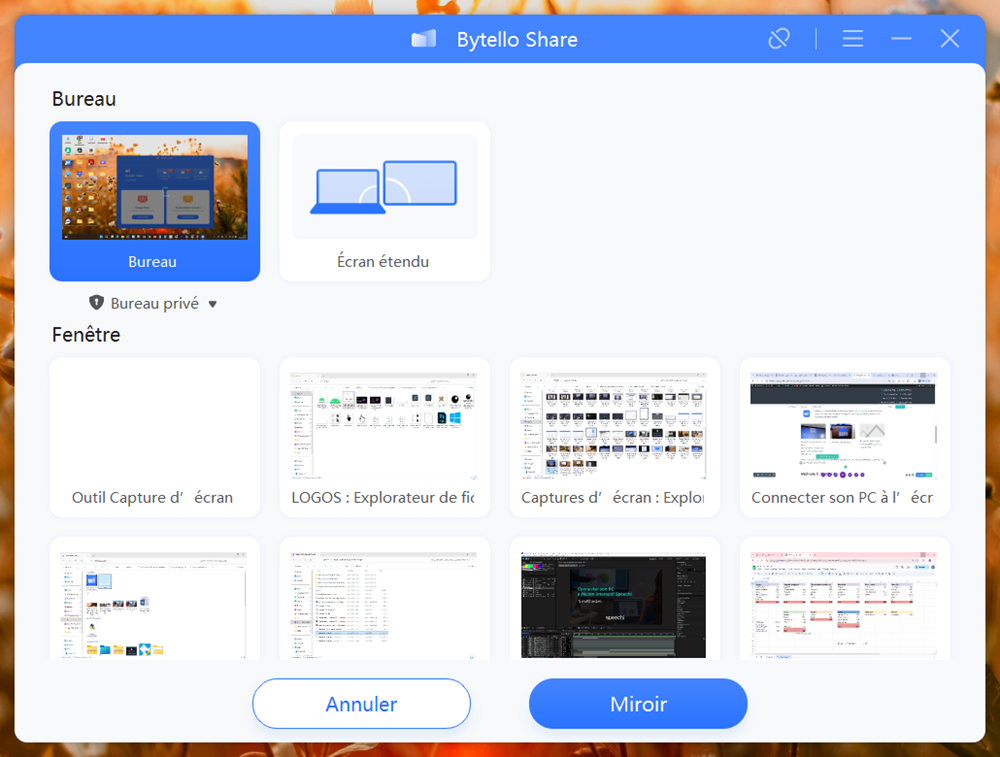
3- To control your PC from the interactive display, select Desktop* mode and click Mirror.
* If you choose to share only a specific application window instead of your entire desktop, touch control from the interactive display will not be available.
Go further with Bytello Share
In this video:
- Install the application on PC/Mac/smartphone
- Share your screen, tools, and manage sharing rights
- Share the interactive screen to other screens
Method 3: BYOD (↑)
Finally, you can connect your PC to the interactive display using a BYOD accessory, an acronym for “Bring Your Own Device.” After an initial pairing with the interactive display (a one-time setup), the BYOD transmitter can be plugged into any computer — and with a single click, your PC will be connected to the screen.
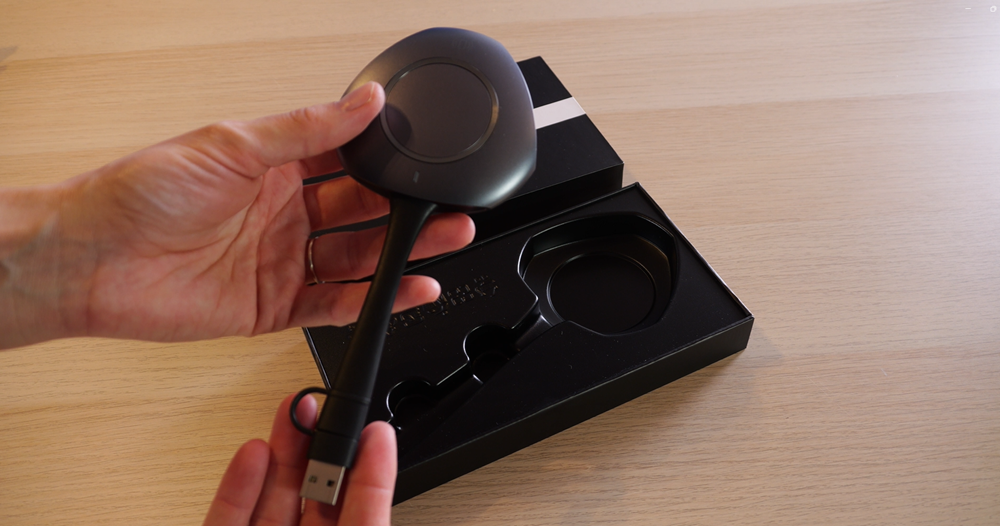
The example shown here features the Speechi SPE-TSF-006 wireless transmitter!
Initial Setup (only once!)
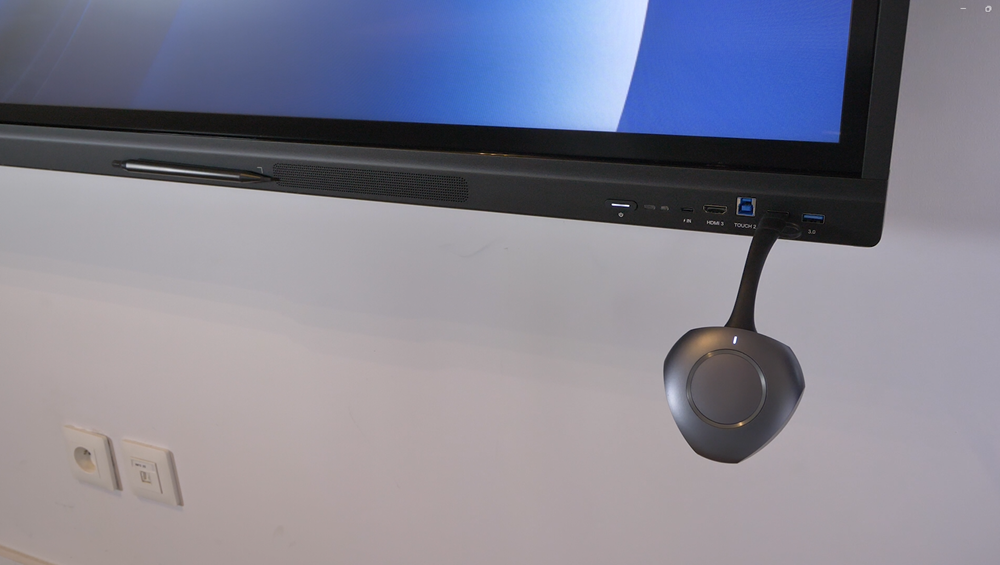
Plug the transmitter into the interactive display.
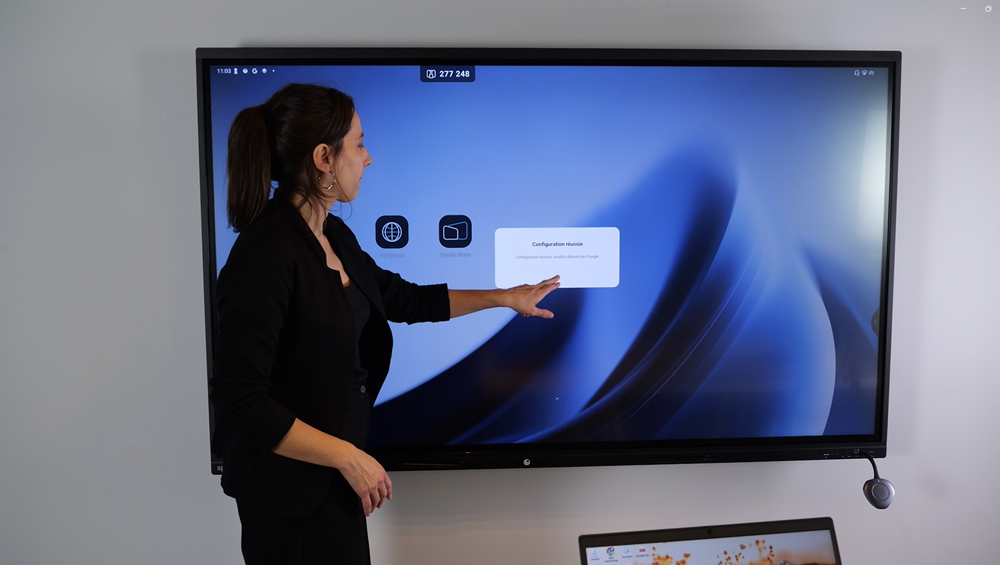
Once the setup is complete, click OK and remove the BYOD device.
Connecting your PC to the interactive display using the transmitter
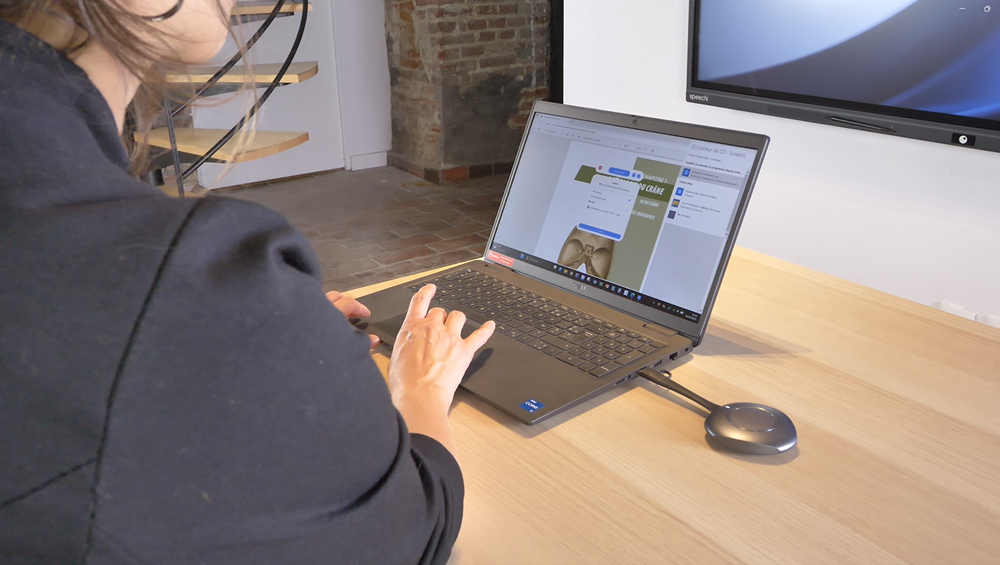
Plug the transmitter into your PC and run its software.
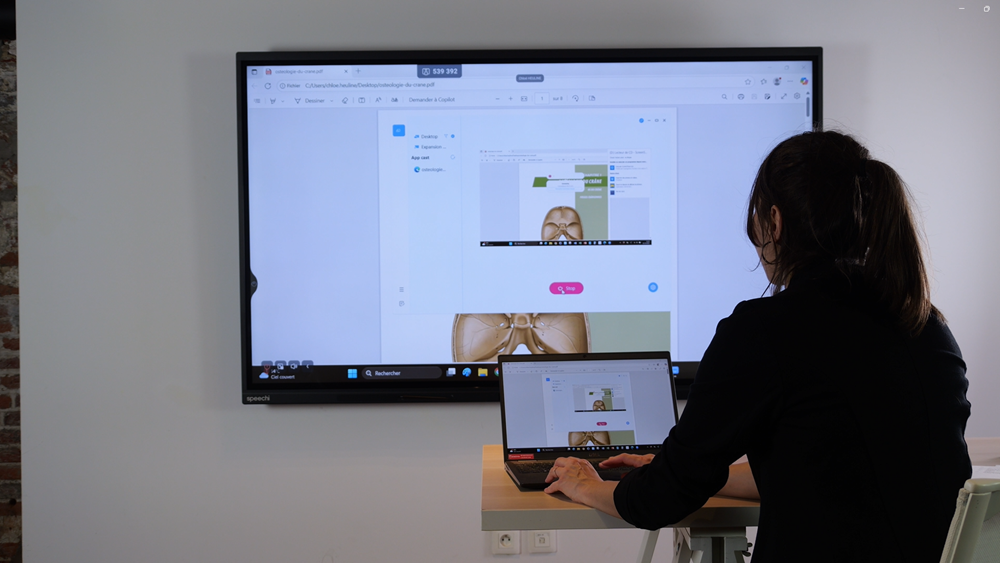
Connect your PC to the display by pressing the central button on the BYOD transmitter. Your PC’s screen will now appear on the Speechi interactive display.
To get started with our tools, please visit this page, where you will find our manuals and quick start guides.
Published on 8 December 2025
 Gynzy Tutorial No. 1: Connecting to your Gynzy Whiteboard via Speechi Connect
 Interactive wall display: 86 inch & 4K Interactive Screen Display
 Talk, Stream & Vault: The 3 New Speechi Connect Features Coming Soon to Your Speechi Interactive Display
 Speechi, the No. 2 interactive display brand in Switzerland
 Tutorial: Cast the Interactive Display to Tablets and PCs with Speechi Connect
