Speechi Connect gives you access to a streaming service. Thanks to it, meeting participants or students in a classroom can view on their own device what is displayed on the interactive screen, while also benefiting from several tools.
How do you start screen sharing from an interactive display with Speechi Connect, and what tools are available? We explain everything in this video tutorial and in the written step-by-step guide below.
The Streaming Offer in the 3 Connect Plans



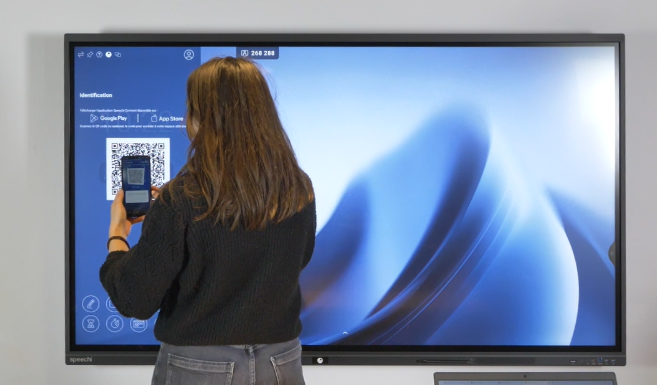
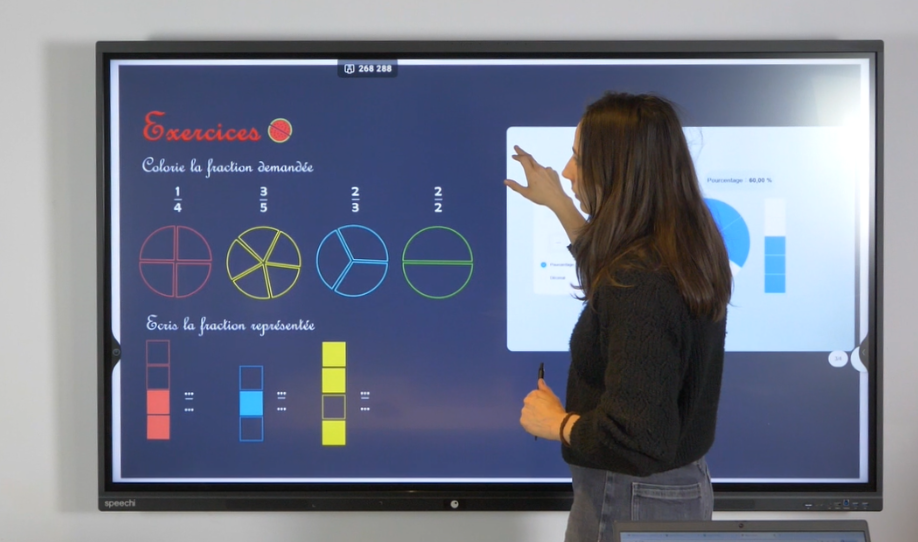
Part 1 : Start Streaming (↑)
On the Interactive Display Side (↑)
1 – Open the Swift Bar.
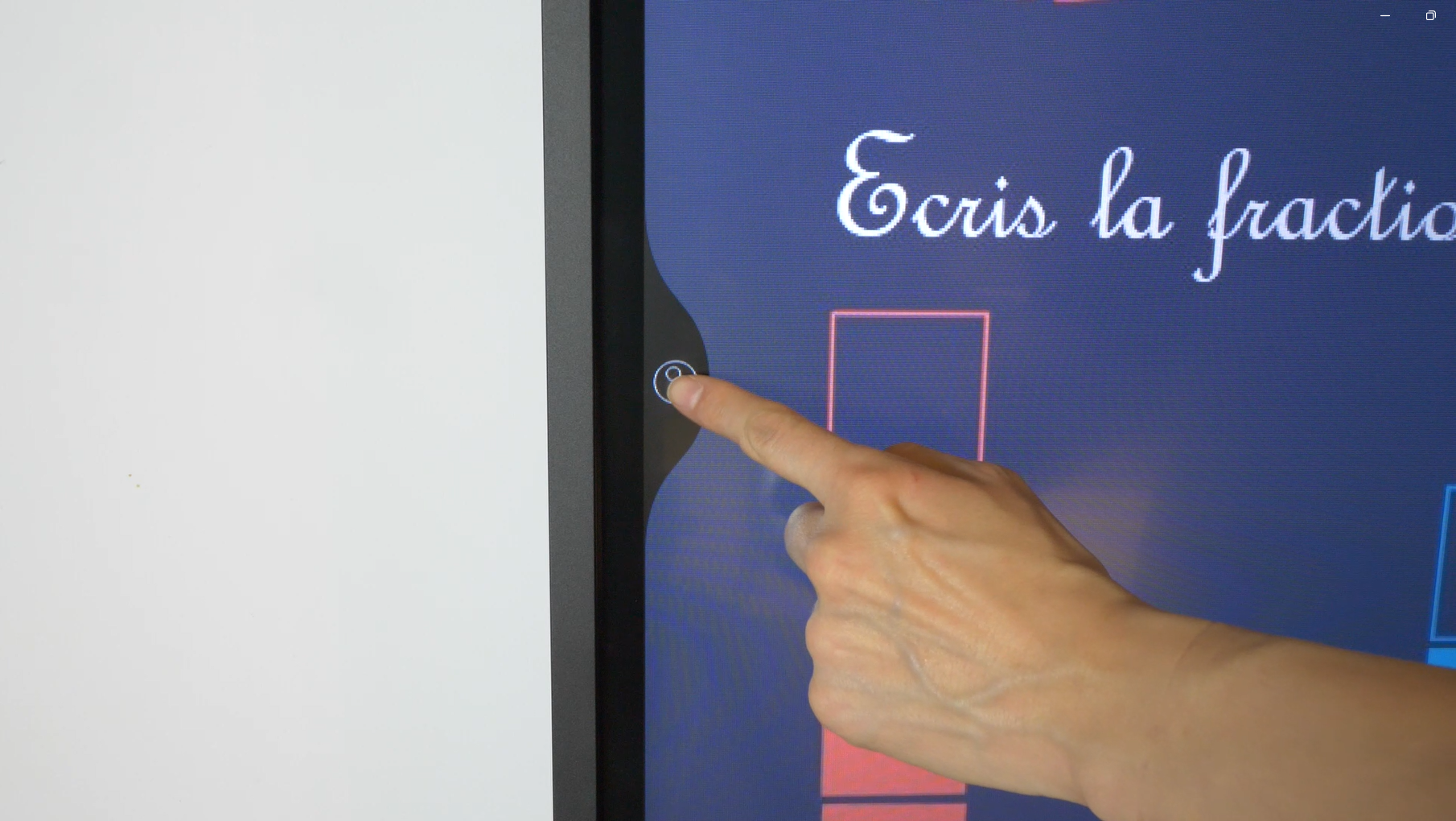
2 – Go to the “Screen Sharing” tab in the Swift Bar and click “Start screen sharing.”
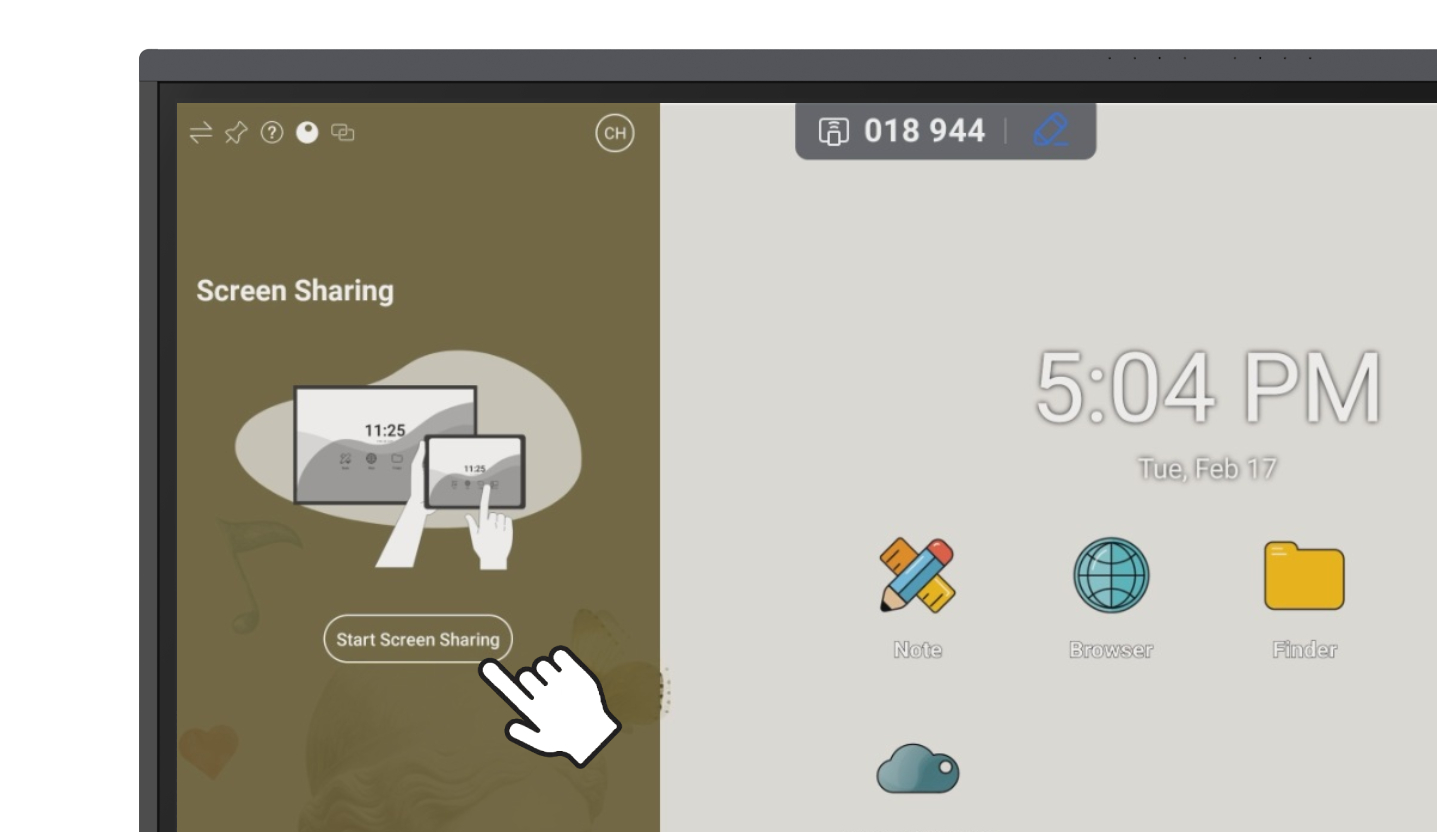
3 – Once screen sharing has started, the following information appears:
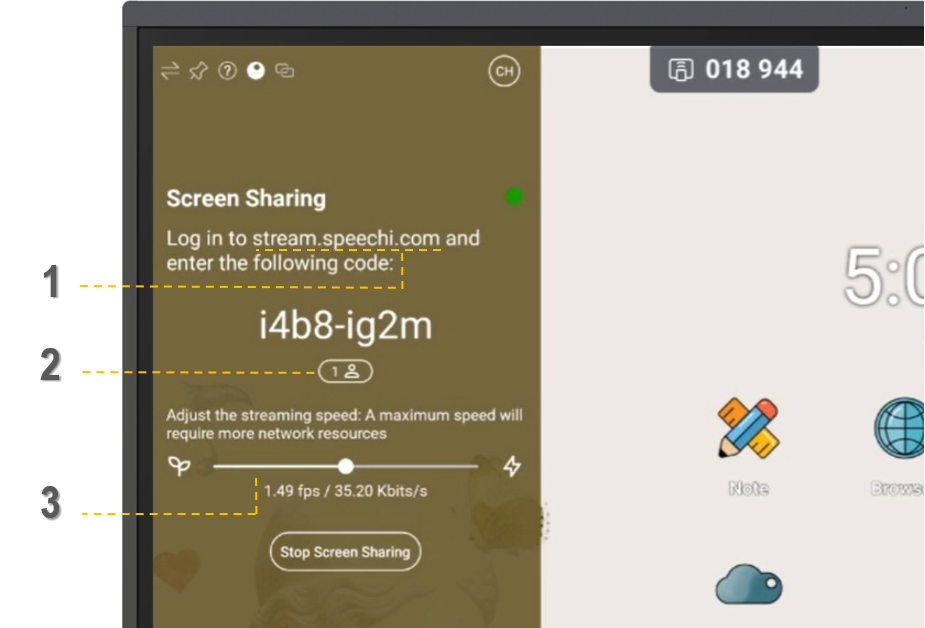
- (1): The URL that users must visit to cast the interactive display.
- (2): The number of people connected to the stream.
- (3): A slider to adjust the streaming speed.
On the Tablets & PCs Side (↑)
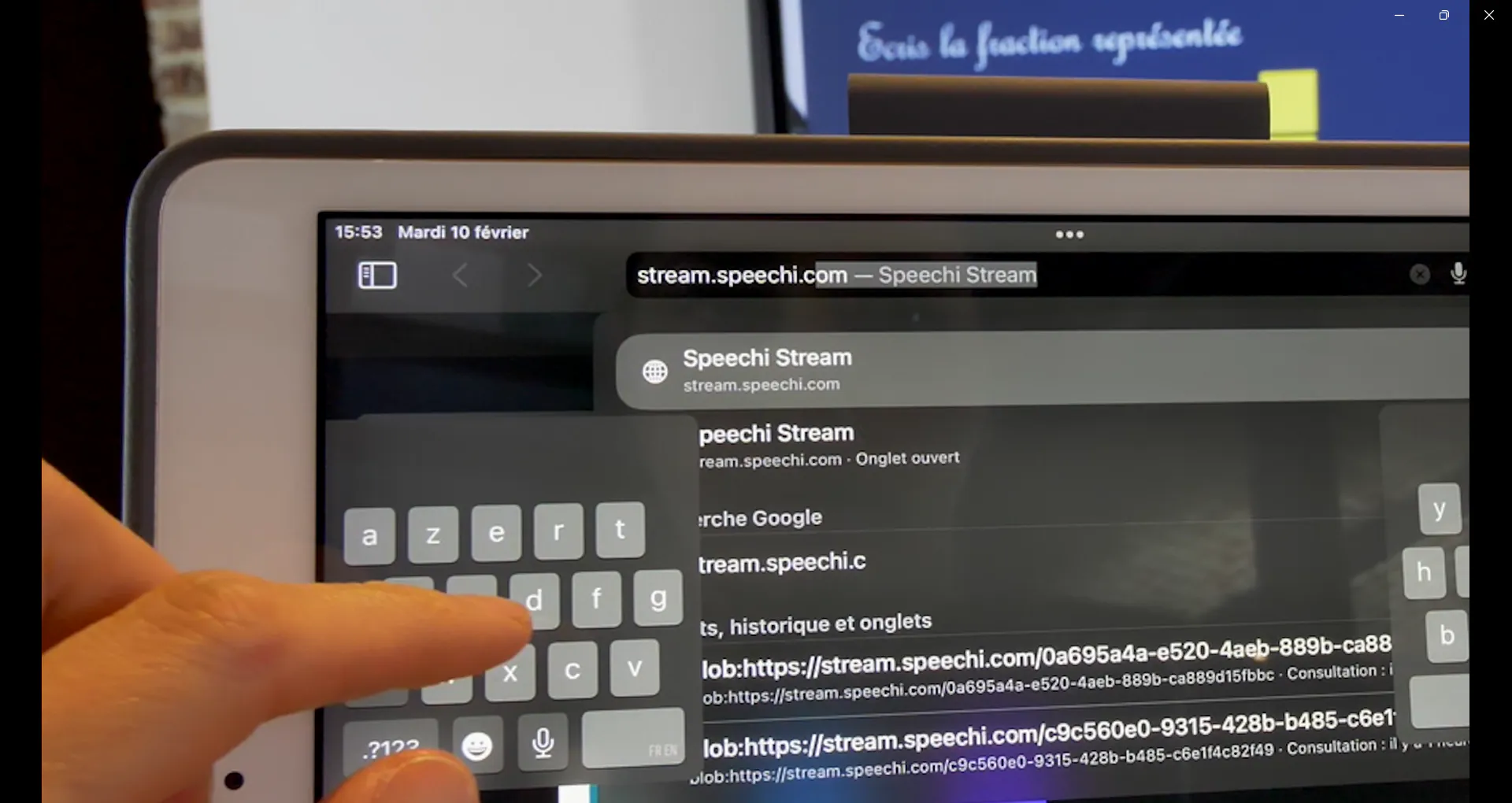
4 – In the web browser of your tablet or PC, enter the URL:
stream.speechi.com
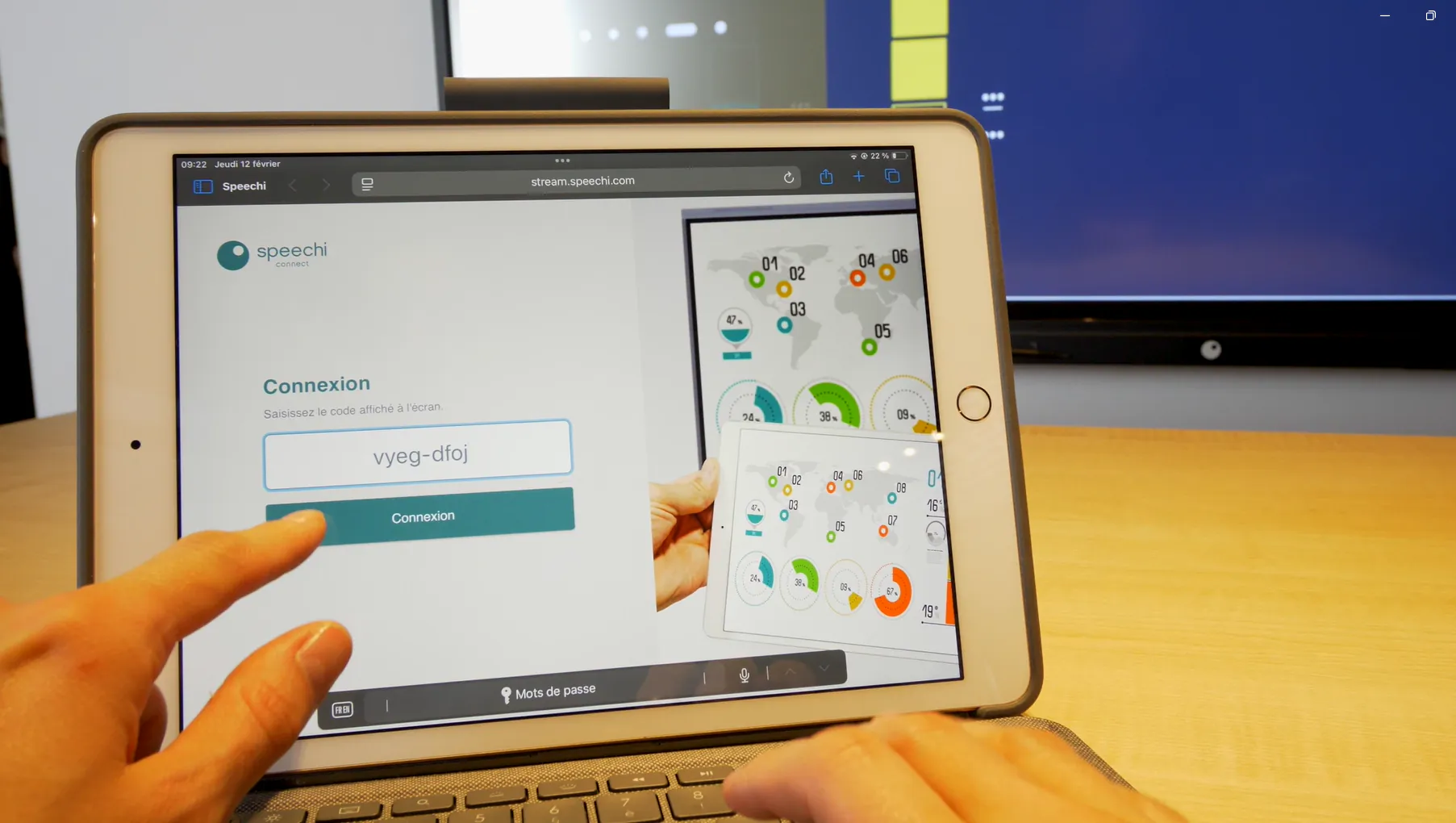
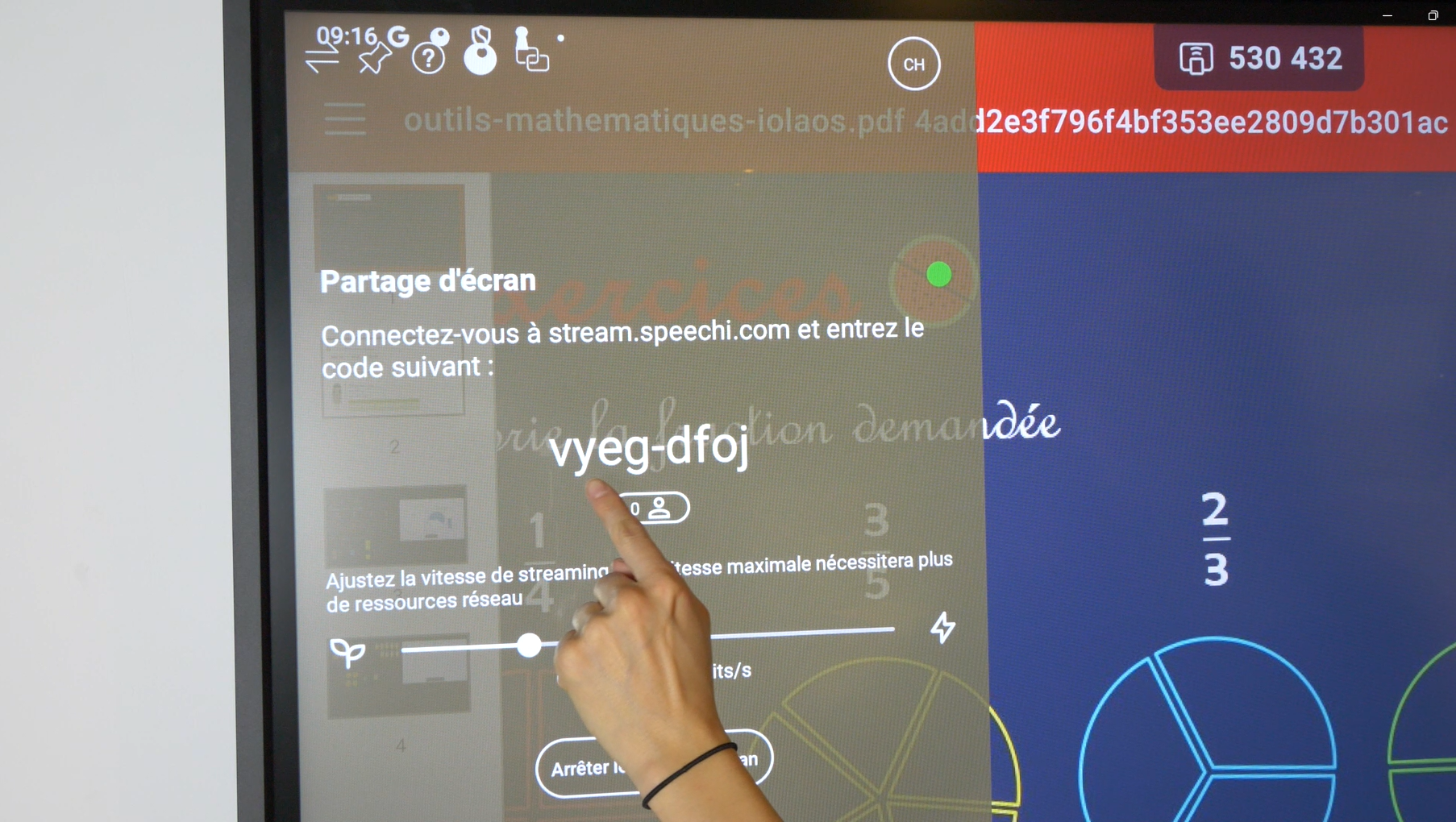
5 – On the Connect Stream login page, enter the password displayed in the “Screen Sharing” tab on the interactive display.
Part 2 : Connect Stream Tools (↑)
When viewing the interactive display through Speechi Connect on your tablet or PC, you have access to a small side toolbar for taking notes.
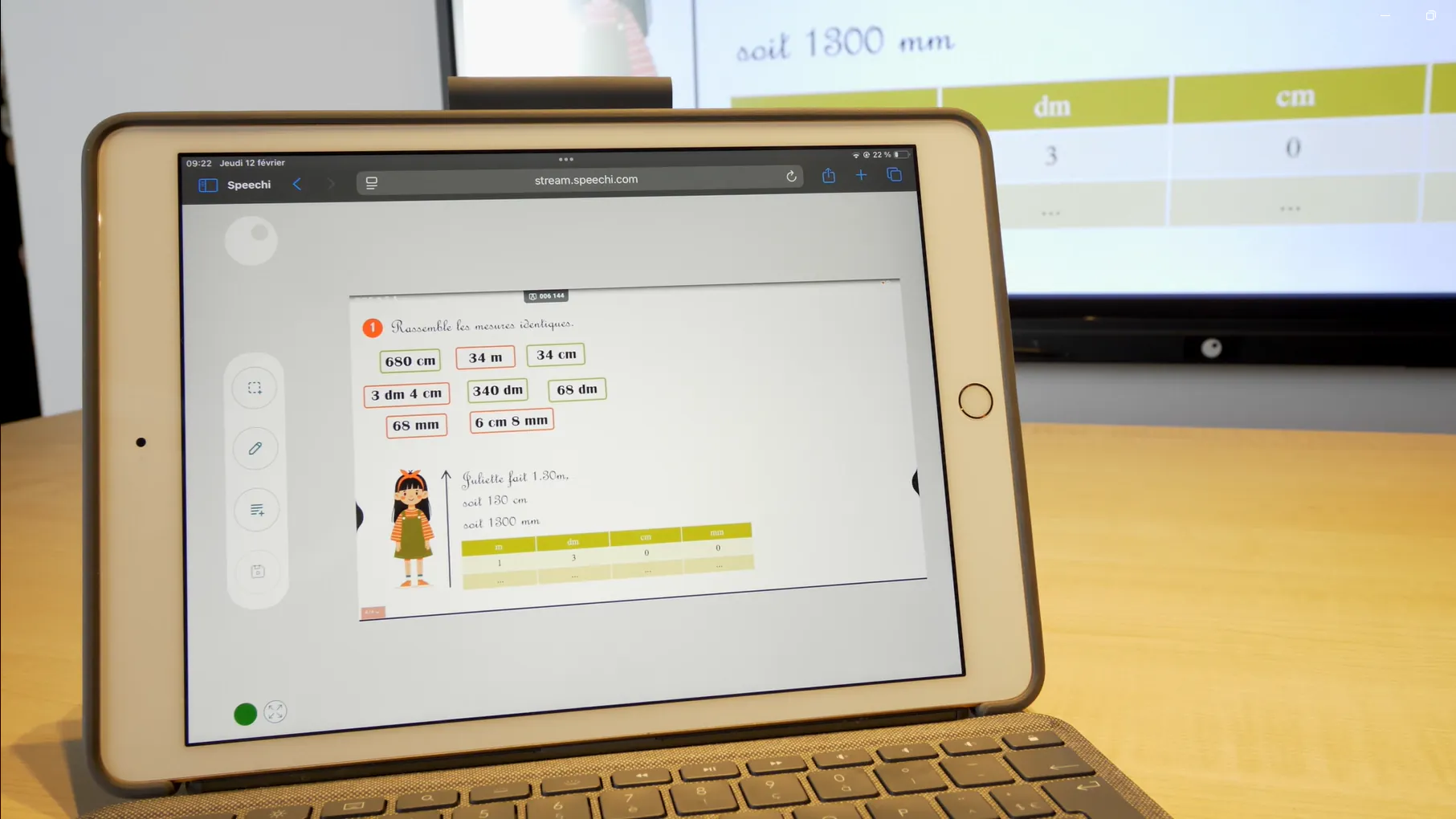
 |
Take Screenshots |
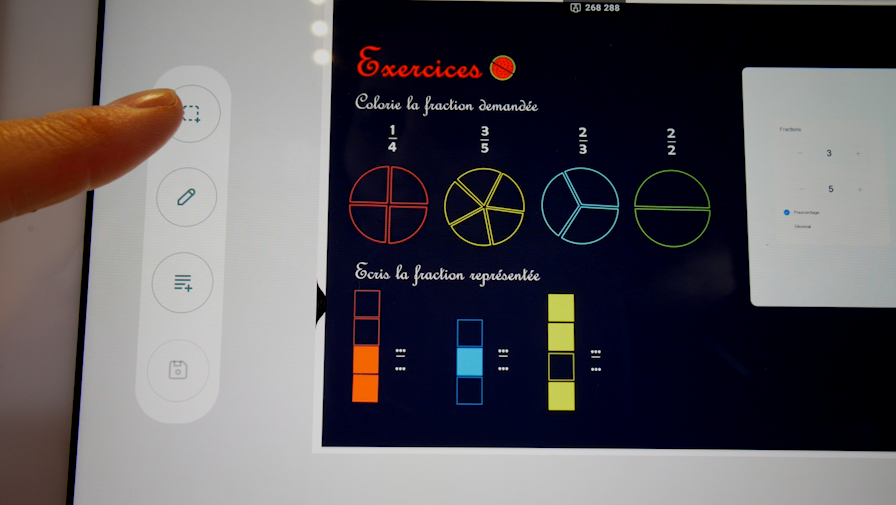
When you take a screenshot, it appears in full screen. However, you still keep a live view of the interactive display in the top right corner.
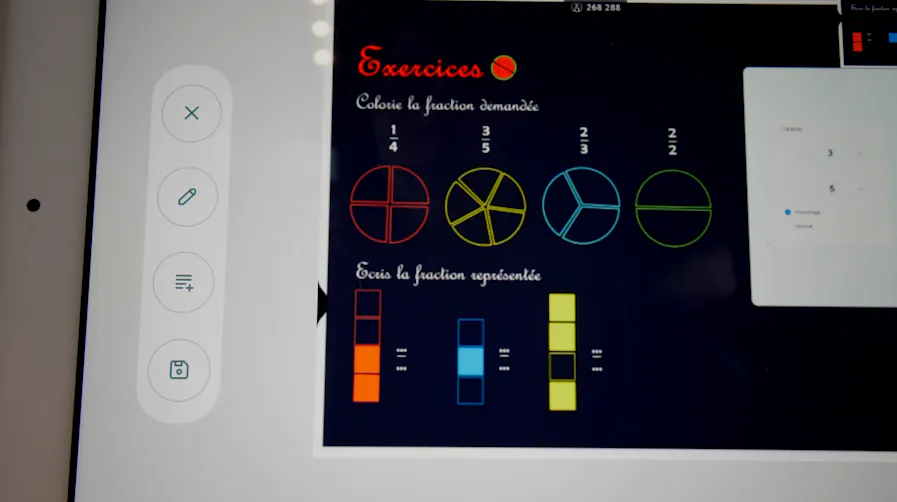
Click the cross to return to the normal view.
 |
Annotate Your Screenshots |
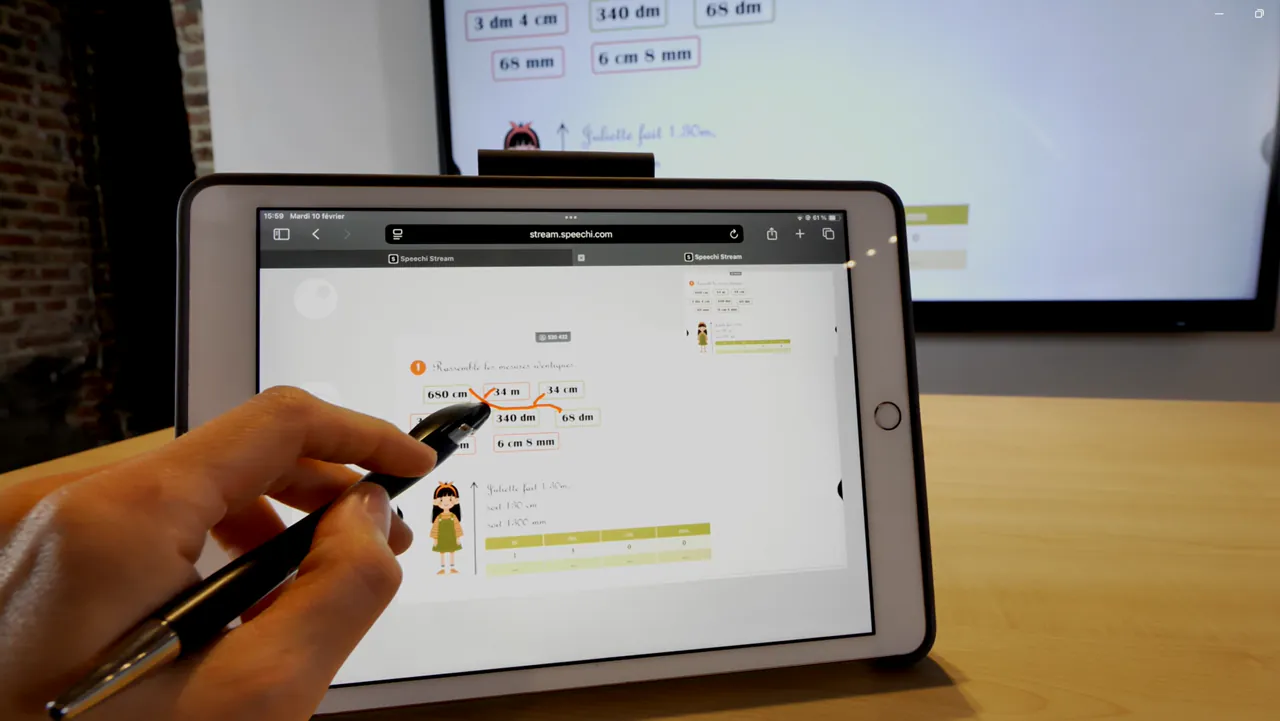
Click the pencil icon to annotate the screenshot.
 |
Type Notes |
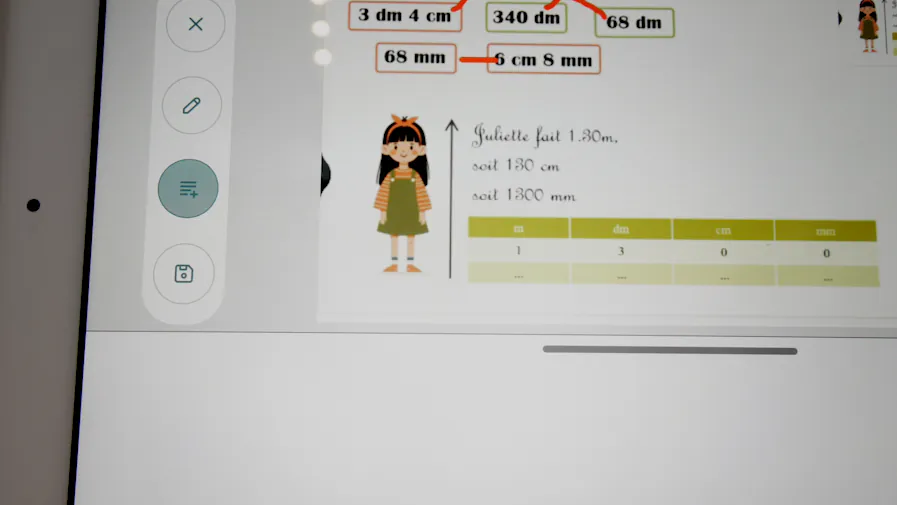
Click the Text button: a text box appears below the screenshot.
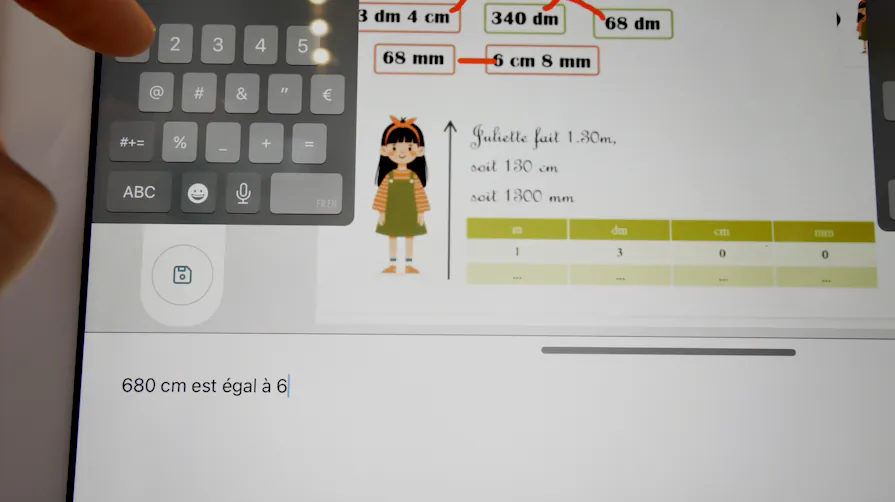
Click inside the text box to bring up your keyboard (on a tablet).
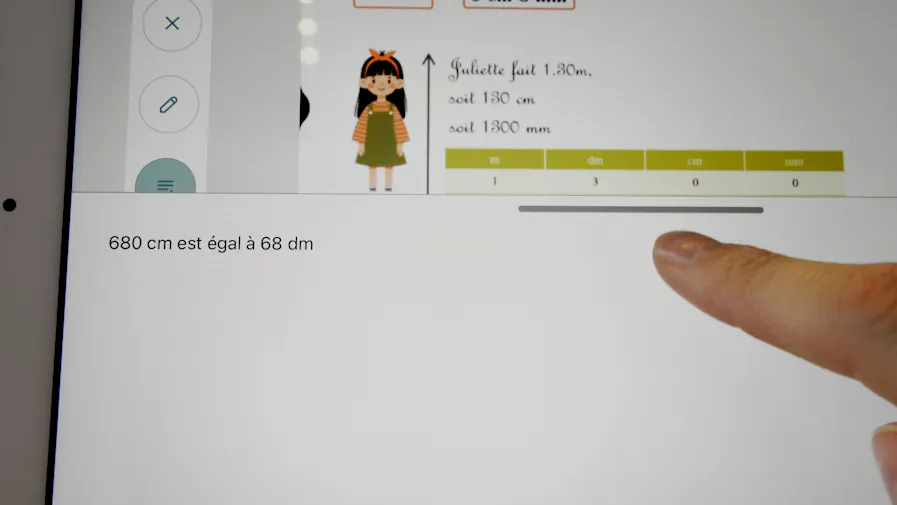
To adjust the height of the text box: Press and hold the gray bar in the middle and slide your finger up or down the screen.
 |
Save Your Notes |
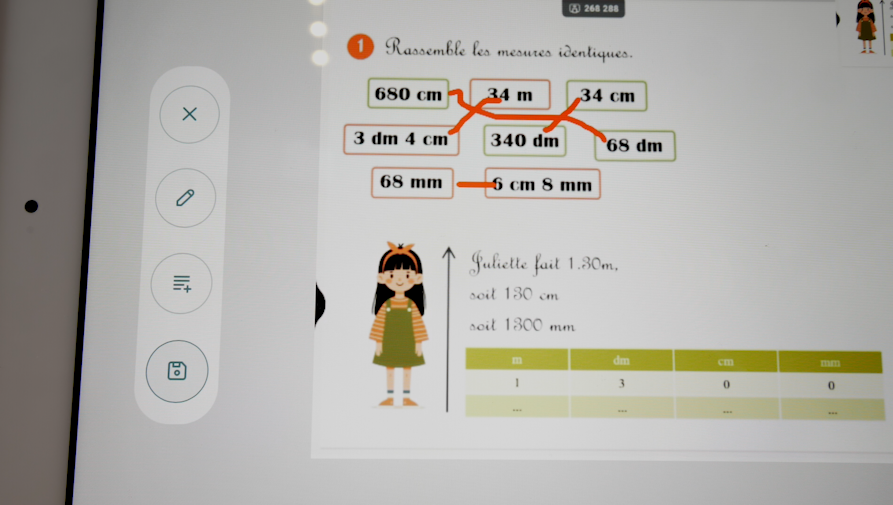
Click the Save button to keep your annotated screenshot and typed notes.
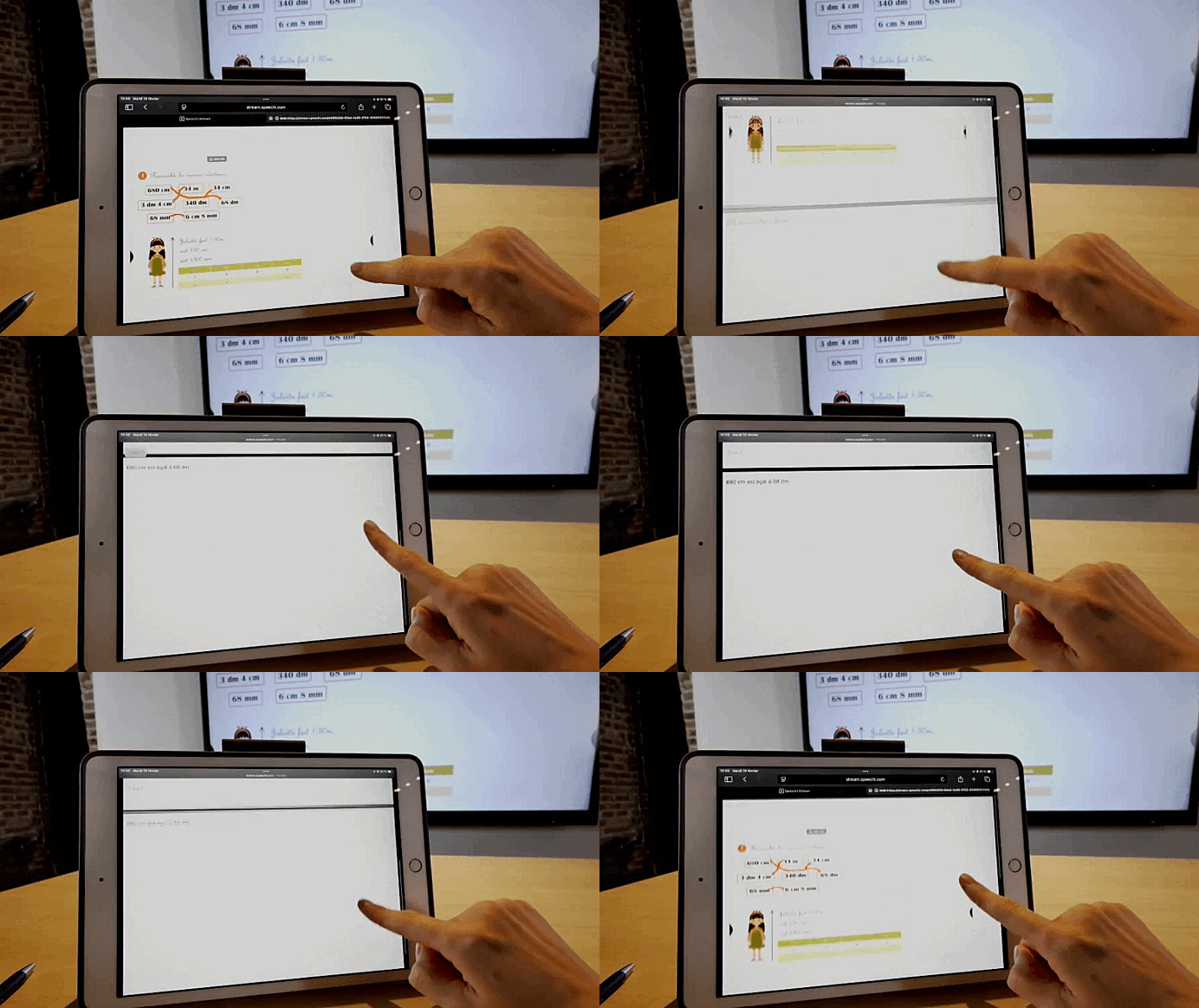
A PDF file is generated containing the screenshot, annotations, and text.
Our Articles on Speechi Connect (↑)
- Tutorial: Linking Your Personal Drive to Your Speechi Connect Workspace
- Nextcloud on Speechi Connect
- Speechi Connect 2.0 : New functionalities
- Our New Speechi Connect Offering
- Talk, Stream & Vault: The 3 New Speechi Connect Features Coming Soon to Your Speechi Interactive Display
- Speechi Connect & its app store
- Teaching maths with educational apps from the Speechi Connect store
- Speechi Connect on your company’s interactive display: what’s the benefit?
- Class Connect on Speechi Interactive Displays at My School: What’s the Benefit?
- Connect Tutorial #1: Personalize My Speechi Interactive Display
- Connect Tutorial #2: Sharing My Files on the Speechi Interactive Display
- Connect Tutorial #3: Introducing the Swift Bar, the Key Feature of the Speechi Connect Interface
- Connect Tutoriel #4 : Starting a video conference with Speechi Connect
- A Day of Teaching with Class Connect
- A Workday with Speechi Connect
- New in Speechi Connect: An Even More Personalized Interactive Experience